When your IPTV is not working, it is tempting to reinstall everything. Don’t: most problems have a simple cause you can find in a few minutes by checking things in the right order. IPTV not working? Start by identifying what you see on screen, then jump to that section.
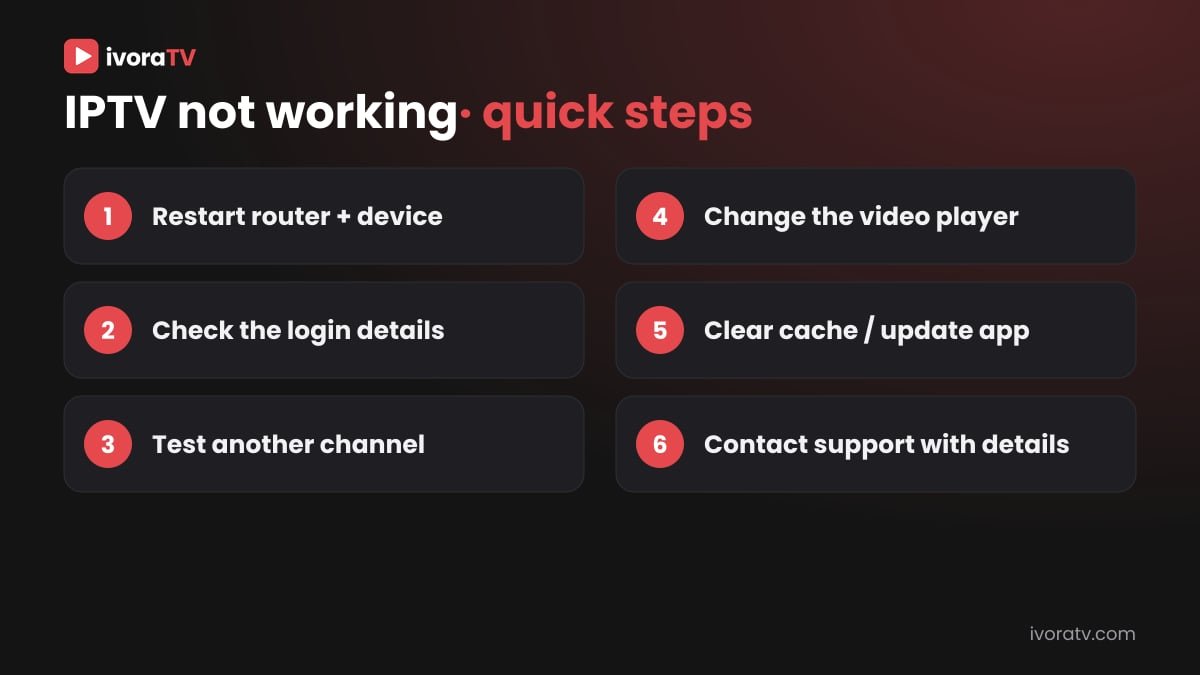
IPTV not working? First, three quick checks
- Is the internet working on that device? Open YouTube or a web page on the same TV or stick.
- Is it every channel or just one? If other channels play, the problem is that stream, not your setup.
- Is it every device? If your phone works but the TV doesn’t, focus on the TV.
Then check our live server status. Using Roku? See IPTV on Roku first. If there is maintenance, it will be listed there.
Login errors (“invalid”, “expired”, “authorisation failed”)
These messages are usually HTTP status codes in disguise. Our IPTV error codes guide explains each one.
- Re-type the username and password: they are case sensitive and a hidden space at the end is enough to fail.
- Check the server URL keeps
http://and the port number (for example:8080). - Check your subscription end date in your welcome email or in the app’s account info.
- Too many devices at once can also block the login. Close the app on devices you are not using.
Channels or categories won’t load
If the app opens but the lists stay empty or keep spinning, restart the device and router (unplug both for 30 seconds), then open the app again. If it still won’t load, clear the app cache and reload the playlist. With M3U links, make sure the whole link was copied: see Xtream Codes vs M3U.
Black screen or no sound
- Switch the internal video player in the app settings (for example from “Native” to “VLC” or “ExoPlayer”).
- Try the HD or SD version of the same channel: some older devices cannot decode certain 4K or HEVC streams.
- For sound problems, check the audio output setting (stereo vs passthrough) on your device or app.
IPTV not working smoothly: freezing and buffering
If channels play but keep stopping, your connection cannot keep up at that moment. Use Ethernet or 5 GHz Wi-Fi, pause big downloads and follow our full list of 10 proven IPTV buffering fixes. Check you have enough bandwidth with our internet speed guide.
IPTV not working because the app crashes or closes
- Update the app to the latest version.
- On Firestick and Android TV, free up storage: uninstall apps you don’t use and clear the cache.
- Restart the device. If it still crashes, uninstall and reinstall the app, then log in again.
- Try another player for a test. If the other app works, the first one is the problem, not your subscription.
TV guide empty or wrong
Channels play but the guide is blank or shows the wrong times? Follow our EPG fixes.
Works on mobile data but not at home?
Some home internet providers or router security settings block certain streaming connections. Try changing the DNS on your device or router to a public one such as 1.1.1.1 or 8.8.8.8, and check that parental filters on the router are not blocking the app.
IPTV not working on one device? Device-specific checks
Firestick and Fire TV
Fire TV Sticks run out of storage quickly. Go to Settings → My Fire TV → About → Storage; if less than 500 MB is free, uninstall unused apps and clear caches. Also check that the date and time are correct, because a wrong clock can break secure connections. Full setup steps are in our Firestick guide.
Samsung and LG Smart TVs
Some Smart TV apps link your playlist to the TV’s MAC address. If you reset the TV, change the app or move the playlist to another TV, you may need to upload it again on the app’s website. See our Smart TV guide.
iPhone, iPad and Apple TV
If an app stops working after an iOS update, update the app from the App Store and restart the device. If the problem continues, delete the playlist in the app and add it again.
How to prevent problems
- Restart your streaming device and router once a week.
- Keep your player app updated, and only download it from official sources.
- Save your login details somewhere safe so you can re-add them quickly.
- Exit the app when you stop watching, so it doesn’t keep a connection open.
- Check your subscription end date and renew before it expires.
IPTV not working: symptom and first fix
| What you see | First thing to try |
|---|---|
| “Invalid” or “expired” login | Re-type the details, check the plan date |
| Nothing loads | Restart router and device |
| Black screen | Change the video player in app settings |
| Buffering | Ethernet or 5 GHz Wi-Fi |
| App closes | Clear cache, update the app |
| Empty TV guide | Update EPG |
Keep this table handy: most cases of IPTV not working are solved by the first fix in the right row.
IPTV still not working?
Message us on WhatsApp with three things: your device, the app you use and a photo of the error. That is usually enough for us to fix it on the first reply.
Frequently asked questions
Why did my IPTV suddenly stop working?
The most common reasons are an expired subscription, a changed server address, an app update or a home internet problem. Check the internet and the server status first.
Why do only some channels not work?
Individual channels can go offline or change. Try another version of the channel (HD or SD) and tell support which one fails.
Should I reinstall the app?
Only after restarting the device, clearing the cache and checking your login. Reinstalling rarely fixes server or internet problems.
Don’t have ivoraTV yet?
Test it for 24 hours for $2 · 14-day refund policy on yearly packs