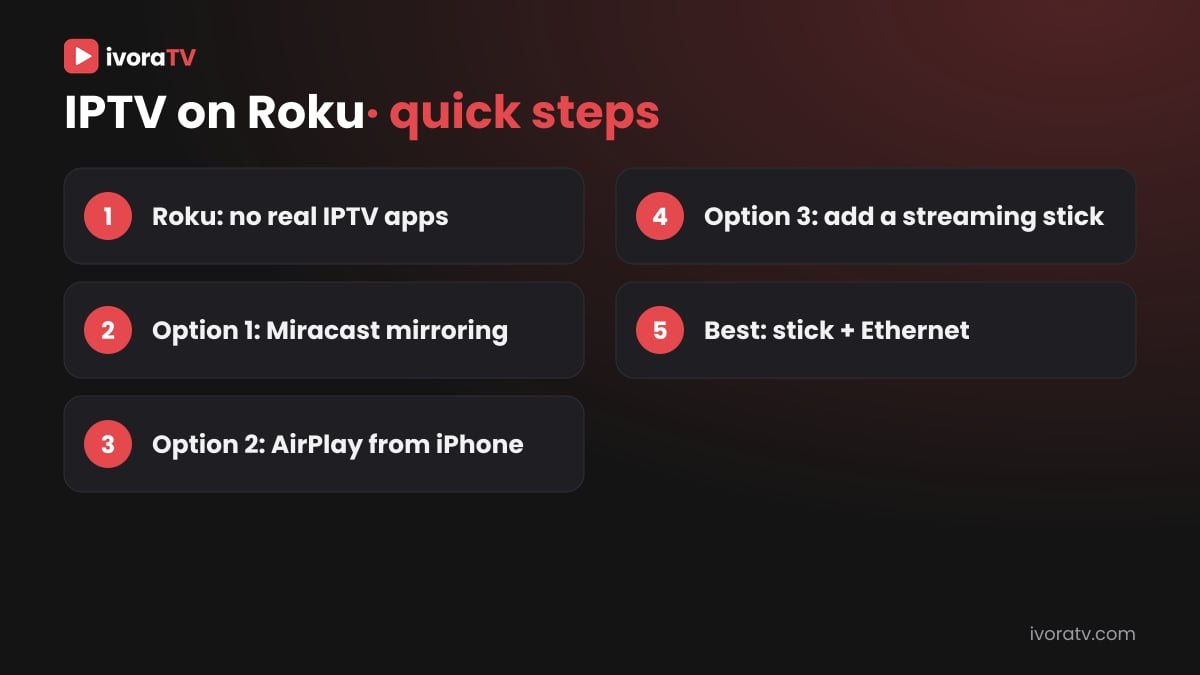
Roku is one of the most popular streaming devices in the United States, so it is natural to ask about IPTV on Roku. The honest answer: Roku is the most limited device for IPTV. Its channel store has very few IPTV players, and you cannot install apps from outside the store. You still have four options.
Why IPTV on Roku is difficult
Roku runs its own closed system. Unlike Firestick or Android TV, you cannot install apps such as TiviMate or IPTV Smarters from a website. The few playlist players that appear in the Roku store tend to be basic, and some get removed. That leaves four practical options.
Option 1: IBO Player Pro from the Roku store
IBO Player Pro, the app we set up for every ivoraTV customer, has a Roku channel. Press Home on your Roku remote, open Streaming Channels → Search Channels and type IBO Player Pro. If it appears in your country’s store, add it, open it and send us the MAC address and device key shown on the screen: we activate it for you for free. Roku removes playlist players from time to time, so if you cannot find it, use one of the options below.
Option 2: Screen mirroring from Android or Windows
Most Roku players and Roku TVs support Miracast screen mirroring from Android phones and Windows PCs.
- On your Roku, go to Settings → System → Screen mirroring and set it to Prompt or Always allow.
- On your Android phone, open the IPTV app (see our Android guide) and start a channel.
- Use Smart View, Cast or Screen mirroring from the phone’s quick settings and choose your Roku.
On Windows, press Windows + K and select your Roku. Mirroring works, but quality depends on your Wi-Fi and your phone stays busy while you watch.
Option 3: AirPlay from iPhone or iPad
Many recent Roku 4K devices and Roku TVs support Apple AirPlay. Check Settings → Apple AirPlay and HomeKit on your Roku. Then play a channel in your iPhone IPTV app (see IPTV on iPhone) and tap the AirPlay icon. Some apps send only the video to the TV, which gives better quality than mirroring the whole screen.
Option 4 (most reliable): Add a streaming stick
For daily use, the easiest fix is a small, inexpensive device plugged into another HDMI port on the same TV: a Fire TV Stick 4K or a Chromecast with Google TV. You keep Roku for your other apps and use the stick for IPTV with a proper player, a full TV guide and much better reliability. Compare options in our best device for IPTV guide, then follow the Firestick setup guide.
IPTV on Roku: which option is right for you?
| Option | Cost | Quality | Best for |
|---|---|---|---|
| IBO Player Pro channel | Free activation with ivoraTV | Good | Roku owners who find it in their store |
| Screen mirroring | Free | Fair, depends on Wi-Fi | Occasional viewing |
| AirPlay | Free | Good | iPhone users with a recent Roku |
| Streaming stick | Low one-off cost | Best | Watching every day |
Roku TV vs Roku stick: is there a difference?
Both run the same Roku software, so the limits are the same: no TiviMate, no IPTV Smarters and no way to install apps from outside the Roku store. IBO Player Pro, when it is in your store, works the same way on both. The one advantage of a Roku TV (a television with Roku built in) is that it has several HDMI ports, so adding a Fire TV Stick or Chromecast with Google TV next to it is easy. You can even rename the HDMI input to “IPTV” in the Roku home screen so the whole family finds it.
Getting the best quality when mirroring
Mirroring sends your phone’s whole screen to the TV in real time, so quality depends on your Wi-Fi more than on your IPTV subscription. For the best result, keep the phone close to the router, use 5 GHz Wi-Fi, close other apps on the phone and turn the phone sideways before you start so the picture fills the TV. If the image stutters, lower the stream quality in your IPTV app to HD instead of 4K.
Why not just use a web browser on Roku?
Roku has no full web browser, so web-based players are not an option either. That is another reason a small streaming stick is the most practical long-term solution.
IPTV on Roku: our honest advice
Try IBO Player Pro from the Roku store first. Mirroring works for occasional viewing, but if the app is not available and you watch every day, a small streaming stick plugged into the same TV is the better way to get IPTV on Roku-equipped TVs. You keep Roku for its own apps and use the stick for IPTV, with a proper TV guide and remote control. See our best device for IPTV comparison and the Firestick setup guide.
Tips for IPTV on Roku without lag
- Keep the phone and Roku on the same 5 GHz Wi-Fi network.
- Plug the phone into a charger: mirroring drains the battery.
- Turn on Do Not Disturb so notifications don’t appear on the TV.
Frequently asked questions
Is there an IPTV app for Roku?
Very few. IBO Player Pro has a Roku channel: search for it in the Roku store, and if it is available in your country we activate it for you for free. Popular apps like TiviMate and IPTV Smarters are not available on Roku.
Can I mirror IPTV from my phone to Roku?
Yes. Most Roku devices support screen mirroring from Android and Windows, and many recent models support AirPlay from iPhone and iPad.
What is the best way to watch IPTV on a Roku TV?
First check the Roku store for IBO Player Pro. If it is not there, plug a Fire TV Stick or Chromecast with Google TV into the same TV: it gives the best quality and a full IPTV app.
Don’t have ivoraTV yet?
Test it for 24 hours for $2 · 14-day refund policy on yearly packs