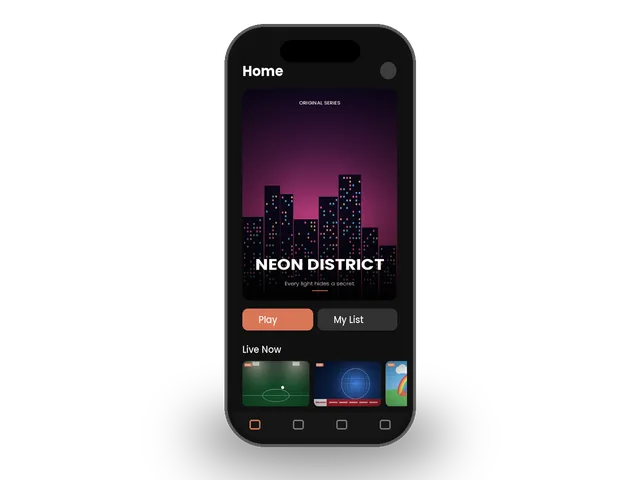
Watching IPTV on iPhone turns your phone into a portable TV: live channels, movies and series wherever you have Wi-Fi. Everything you need is in the App Store, and the same apps work on iPad. Follow this guide to set up IPTV on iPhone with your ivoraTV details in about three minutes.
Best apps for IPTV on iPhone & iPad
| App | Price | Best for | Xtream | M3U |
|---|---|---|---|---|
| Smarters Player Lite | Free | Beginners | ✓ | ✓ |
| GSE Smart IPTV | Free / Pro | Advanced options | ✓ | ✓ |
| iPlayTV | Paid | Beautiful interface | ✓ | ✓ |
What you need for IPTV on iPhone
Any iPhone or iPad that runs iOS or iPadOS 15 or newer works well. A recent model makes the TV guide faster, but even older phones play HD streams smoothly. On mobile data, remember that video uses a lot of data: around 1.5 to 3 GB per hour in HD, so Wi-Fi is the best choice for long sessions of IPTV on iPhone.
Step 1 · Install the app
- Open the App StoreSearch for “Smarters Player Lite” (or another app from the table).
- InstallTap Get and confirm with Face ID, Touch ID or your password.
- Open the appAccept the terms when the app opens for the first time.
Step 2 · Log in
- Choose “Login with Xtream Codes API”It is usually the first option on the welcome screen.
- Enter your detailsAny name: ivoraTV · Username and password: from your ivoraTV email · URL: the server address from your email (starts with http://).
- Tap “Add user”The app downloads channels, movies and the TV guide. The first load can take a minute.
- Choose “Load your playlist or file/URL”Select the M3U URL option.
- Paste your M3U linkPlaylist name: ivoraTV · File/URL: paste the full M3U link from your email.
- Tap “Add user”Wait for the playlist to load, then open Live TV.
Using an iPad?
The same apps and steps work on iPad. The larger screen makes the TV guide easier to browse, and you can use Split View to watch while you work.
Tips for smooth IPTV on iPhone
- Use a wired Ethernet connection or 5 GHz Wi-Fi when possible.
- Restart your device and router once a week to clear memory.
- Keep the player app updated to the latest version.
- If a channel buffers, try another stream of the same channel (many channels have HD and FHD versions).
Troubleshooting IPTV on iPhone
- “Invalid username or password”: copy the details again from your email, with no spaces at the start or end. Usernames and passwords are case-sensitive.
- Channels load but don’t play: check the server URL (including http:// and the port number), then restart the app.
- Buffering: follow our 10 buffering fixes and check the server status page.
- Still stuck? Message us on WhatsApp. Most setups are fixed in a few minutes.
Before you set up IPTV on iPhone
A few minutes of preparation makes the setup of IPTV on iPhone smooth. Keep your welcome email open on your phone so you can copy the login details without typos, check that your iPhone or iPad has the latest software update, and make sure it is connected to your home network, ideally with a cable or strong 5 GHz Wi-Fi. If you share the account in your home, decide which screens will watch at the same time so your plan matches. Finally, write down the name of the player app you choose: if you ever need help, telling our team the device and the app lets us answer in a single message.
Picture-in-Picture and multitasking
Many players support Picture-in-Picture on iPhone and iPad, so a match keeps playing in a small window while you reply to messages. On iPad, Split View lets you keep IPTV on one side of the screen and another app on the other. Look for the Picture-in-Picture button in the player controls; if it is missing, the app does not support it yet.
Save mobile data
Streaming IPTV on iPhone over mobile data is convenient, but HD video uses a lot of it. Choose the SD or HD version of a channel instead of FHD or 4K, turn on Low Data Mode in your cellular settings if you are close to your limit, and switch back to Wi-Fi when you get home.
Parental controls
Most iOS players let you lock categories with a PIN. Set it up before giving the phone or iPad to children, and combine it with Apple’s Screen Time if you want limits on viewing time. This keeps IPTV on iPhone and iPad safe for the whole family.
Send IPTV from iPhone to your TV
Want the big screen? Many players support AirPlay, so you can send IPTV on iPhone to an Apple TV or an AirPlay-compatible Smart TV in one tap. For daily TV viewing, though, a native app on the TV is more stable: see our Apple TV guide or the Smart TV guide.
Browse all IPTV setup guides for your other devices.
Frequently asked questions
Can I watch IPTV on iPhone?
Yes. Install an IPTV player from the App Store and log in with your ivoraTV Xtream Codes or M3U link.
Can I watch on mobile data?
Yes, but streaming uses a lot of data (around 1.5–3 GB per hour in HD). Wi-Fi is recommended.
Does it work on iPad?
Yes, every app in this guide works on iPhone and iPad.
Don’t have ivoraTV yet?
Get your login details in minutes · 14-day refund policy