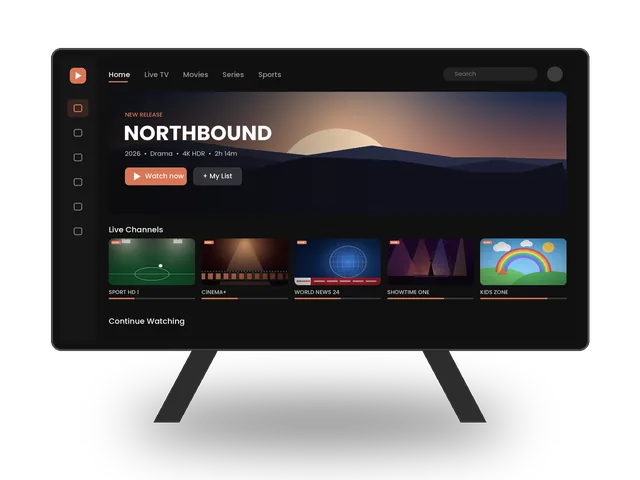
Setting up IPTV on Smart TV lets you watch live channels, movies and series straight from your television, without a box or an extra remote. Samsung TVs run Tizen and LG TVs run webOS, and both have IPTV player apps in their stores. This guide shows the best apps and how to get IPTV on Smart TV working with your ivoraTV details.
Best apps for IPTV on Smart TV
| App | Price | Best for | Xtream | M3U |
|---|---|---|---|---|
| IPTV Smarters Pro | Free | Easiest login | ✓ | ✓ |
| IBO Player | Paid activation | Fast & stable | ✓ | ✓ |
| SET IPTV | Paid activation | Classic layout | — | ✓ |
Is your TV compatible?
Most Samsung Smart TVs from 2018 onwards and LG TVs with webOS 4.0 or newer can run IPTV apps. To check, open your TV’s app store and search for one of the apps in the table above. If none of them appear, your model is probably too old: in that case, a Firestick or an Android TV box is a cheap way to enjoy IPTV on Smart TV screens of any age, and our Firestick guide takes five minutes.
Sony, Philips, TCL and Hisense
Many Sony, Philips, TCL and Hisense televisions use Android TV or Google TV. For those models, follow our Android TV guide instead: you will get the widest choice of apps, including TiviMate.
Step 1 · Install the app
- Open the app storeSamsung: press Home → Apps. LG: press Home → LG Content Store.
- Search and installSearch for the app name (for example “IPTV Smarters”) and install it.
- Open the appIf the app shows a MAC address and device key, write them down: you’ll need them in the next step.
Step 2 · Log in
Apps like IPTV Smarters let you log in directly on the TV. Apps like IBO Player and SET IPTV use their website: you add your playlist online using the MAC address shown on your TV.
- Choose “Login with Xtream Codes API”It is usually the first option on the welcome screen.
- Enter your detailsAny name: ivoraTV · Username and password: from your ivoraTV email · URL: the server address from your email (starts with http://).
- Tap “Add user”The app downloads channels, movies and the TV guide. The first load can take a minute.
- Using IBO Player or SET IPTV?Open the app’s website on your phone, enter the MAC address and device key, then add your Xtream details. Restart the app on the TV.
- Choose “Load your playlist or file/URL”Select the M3U URL option.
- Paste your M3U linkPlaylist name: ivoraTV · File/URL: paste the full M3U link from your email.
- Tap “Add user”Wait for the playlist to load, then open Live TV.
- Using IBO Player or SET IPTV?On the app’s website, enter your MAC address and paste your M3U link as the playlist URL. Restart the app on the TV.
Tips for smooth IPTV on Smart TV
- Use a wired Ethernet connection or 5 GHz Wi-Fi when possible.
- Restart your device and router once a week to clear memory.
- Keep the player app updated to the latest version.
- If a channel buffers, try another stream of the same channel (many channels have HD and FHD versions).
Troubleshooting IPTV on Smart TV
- “Invalid username or password”: copy the details again from your email, with no spaces at the start or end. Usernames and passwords are case-sensitive.
- Channels load but don’t play: check the server URL (including http:// and the port number), then restart the app.
- Buffering: follow our 10 buffering fixes and check the server status page.
- App not in your store: some older TVs have a limited store. A Firestick or Android TV box is a cheap way to get every app.
- Still stuck? Message us on WhatsApp. Most setups are fixed in a few minutes.
Samsung: quick summary
- Press Home and open Apps.
- Search for your player and install it.
- Open it and log in with Xtream Codes, or note the MAC address if the app uses a website.
- Add your favourite channels and set the TV guide to update automatically.
LG: quick summary
- Press Home and open the LG Content Store (Apps on newer models).
- Search for the player and install it.
- Open it and enter your details, or use the MAC address on the app’s website.
- Restart the app once so the full channel list loads.
Samsung or LG: which is better for IPTV on Smart TV?
Both work very well. Samsung TVs usually have a slightly larger choice of apps, while LG’s webOS is fast and simple to navigate. In practice, the quality of IPTV on Smart TV depends more on your internet connection and Wi-Fi signal than on the brand. If the TV is far from the router, an Ethernet cable makes the biggest difference, especially for live sports in Full HD and 4K.
Keep the TV and the app updated
TV manufacturers regularly release firmware updates that improve Wi-Fi and video playback. Turn on automatic updates in your TV settings, and update the player app when the store offers a new version. This keeps IPTV on Smart TV stable and avoids login problems after app changes.
Using the TV remote comfortably
Typing long passwords with a TV remote is slow, which is why many apps for IPTV on Smart TV let you add your playlist from a phone or computer on their website. If your app offers this option, use it: copy your details from the ivoraTV email on your phone and paste them in a few seconds. Then add your favourite channels to Favorites for one-click access.
Want to compare apps first? Read our guide to the best IPTV player apps, or browse all IPTV setup guides.
Frequently asked questions
Does my Smart TV support IPTV?
Most Samsung TVs from 2018 and LG TVs with webOS 4.0 or newer support IPTV apps. Older models work best with a Firestick or Android TV box.
Why does the app ask for a MAC address?
Some apps link your playlist to your TV using its MAC address. You add your login details on the app’s website instead of typing them with the remote.
Do I need a satellite dish or cable?
No. ivoraTV works over your internet connection only.
Don’t have ivoraTV yet?
Get your login details in minutes · 14-day refund policy