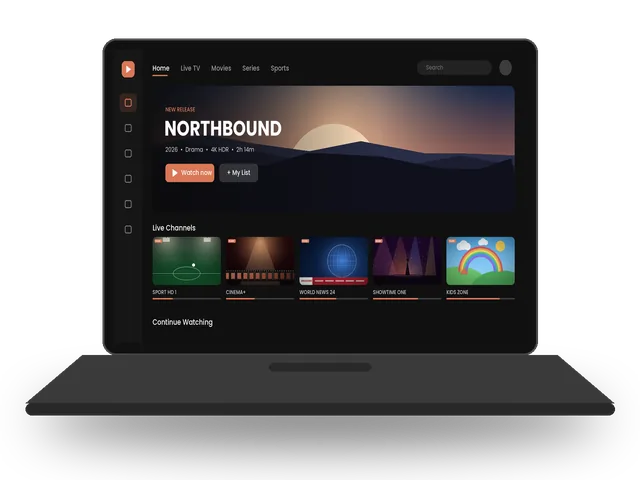
Watching IPTV on PC is handy at a desk, in a home office or on a laptop. On Windows, ivoraTV uses IBO Player Pro from the official Microsoft Store, the same app we use on TVs and phones, linked to your subscription with a simple code.
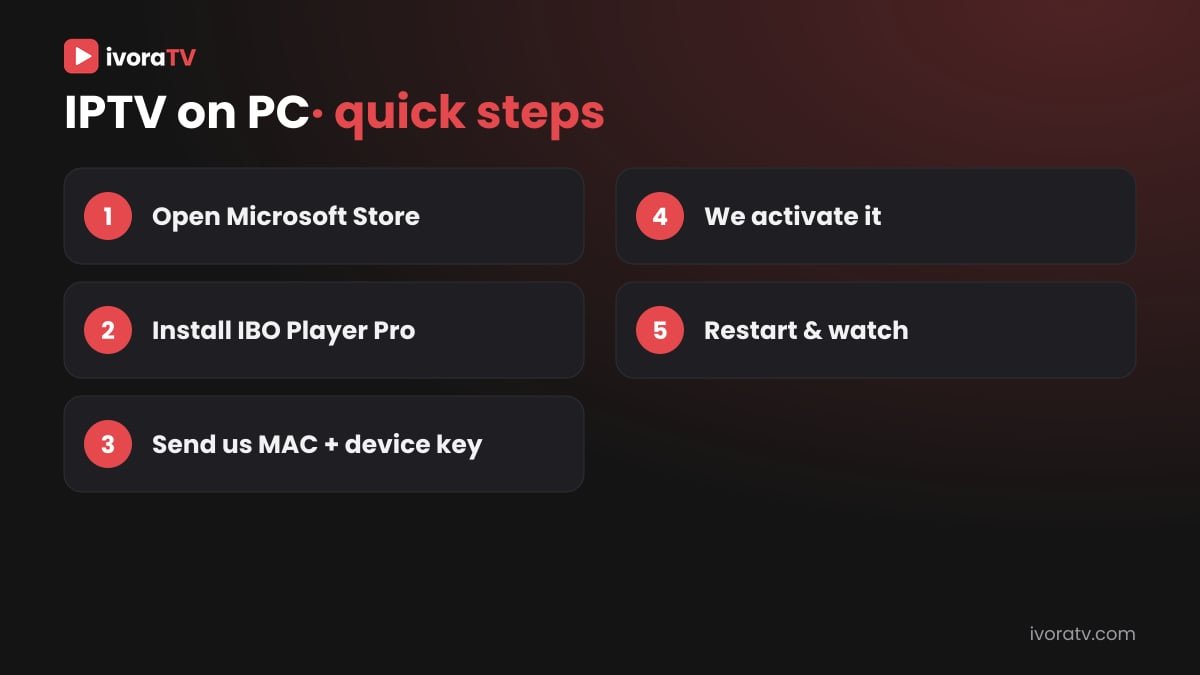
Why IBO Player Pro for IPTV on PC
Many PC players need you to paste long playlist links or install codecs. IBO Player Pro avoids all that: it installs from the Microsoft Store, updates itself, and links to your subscription with a code we activate for you. The interface is the same as on our TV setups, so if you already use ivoraTV in the living room, you'll feel at home straight away. A laptop connected to the TV with HDMI also works as a quick temporary setup in a guest room or while travelling.
Step 1: Install IBO Player Pro on your PC
- Open the Microsoft Store (or the app's Microsoft Store page).
- Search IBO Player Pro.
- Select Get / Install, then open it from the Start menu.
Step 2: Log in with your username, password and server URL
A computer has no MAC address like a TV, so there is nothing to send us here. Right after your payment we send you three login details on WhatsApp and by email: your Username, your Password and the Server URL. You type them once in the app and you're done.
- Open IBO Player Pro and choose the login with a username: it is usually called Xtream Codes, Login with username or Add user.
- Enter the Username and Password exactly as we sent them (they are case-sensitive).
- Enter the Server URL in full, including http:// and the port number at the end (for example :8080), if there is one.
- Tap Login or Add user. Your channels, movies and series load in a few seconds.
Tip: copy and paste the three details from our WhatsApp message instead of typing them, so no space or letter slips in.
IPTV on PC alternatives for Mac
IBO Player Pro doesn't list a dedicated macOS app. On Macs with Apple silicon (M1 or newer), the Mac App Store can sometimes install iPhone and iPad apps: search IBO Pro Player. If it isn't offered, the easiest option is to watch on a TV device with our Firestick or Smart TV guide, or on an iPad.
Step 3: Start watching IPTV on PC
- Full screen: double-click the video.
- Live TV, Movies and Series are on the home screen, with the TV guide.
- Second screen: connect the laptop to a TV with an HDMI cable.
IPTV on PC: quick fixes
- Store won't install: update Windows and sign in to the Microsoft Store.
- Choppy video: close other apps and browser tabs, and use a cable instead of Wi-Fi.
- No channels: restart the app, then check your username, password and server URL for typos.
Next steps
- Picture freezing? Work through our 10 IPTV buffering fixes.
- Check your connection: see the internet speed you need for IPTV in HD and 4K.
- Something not working? Use the IPTV troubleshooting checklist.
- Not a customer yet? Test ivoraTV for 24 hours for $2 on this device before you choose a yearly pack.
Frequently asked questions
Which app do I use for IPTV on PC?
IBO Player Pro from the Microsoft Store on Windows 10 or 11. Then log in with the username, password and server URL we send you.
Do I need a MAC address on my computer?
No. MAC addresses are for TVs and streaming sticks. On a computer you log in with the username, password and server URL we send you on WhatsApp and by email.
Is there a Mac version?
There's no dedicated macOS app listed. Apple silicon Macs may install the iPad version from the App Store; otherwise use a TV device or an iPad.
Can I watch on my laptop and TV at the same time?
Yes, if your plan includes enough connections for two screens at once.
Don’t have ivoraTV yet?
Test it for 24 hours for $2 · 14-day refund policy on yearly packs