Most IPTV problems come with a message or a number. These IPTV error codes are mostly standard HTTP status codes, so they tell you a lot about where the problem is: your login, a single channel, the server or your device. The exact wording of IPTV error codes varies between apps, but the meanings below apply in most cases.
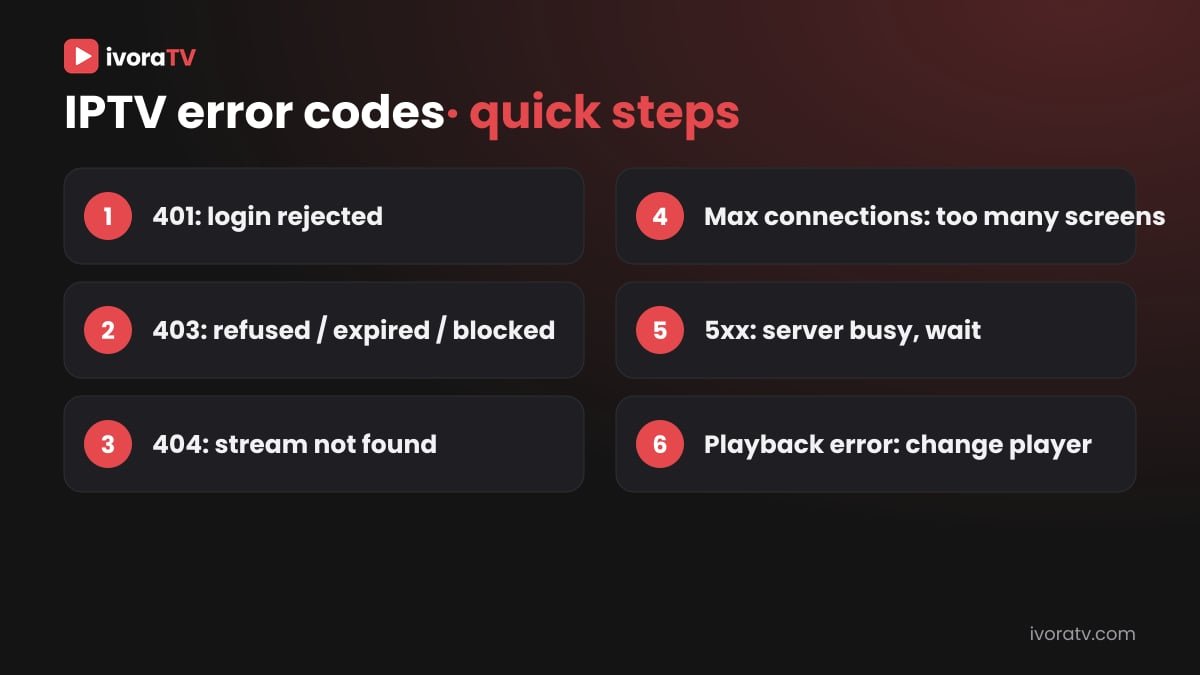
IPTV error code 401: Unauthorized / “Invalid username or password”
Meaning: the server didn’t accept your login.
Fix: check capital letters, remove spaces at the start or end (common after copy-paste), and make sure the server URL includes http:// and the port, like :8080. If all three are right, the subscription may have expired. Full walkthrough: IPTV Smarters login guide.
IPTV error code 403: Forbidden
Meaning: the server understood the request but refuses it. Common reasons: the account is expired or suspended, too many devices are connected, or access from your network is blocked.
Fix: close the app on all other devices and wait a few minutes. If you use a VPN, turn it off or change server, as some VPN addresses are blocked. If it continues, contact your provider with the error and the time it happened.
IPTV error code 404: Not Found
Meaning: the stream address doesn’t exist. If it is only one channel, that channel is offline or has moved. If it is every channel, the server URL is wrong or out of date.
Fix: reload the playlist (in most apps: Settings → Refresh / Update playlist). If all channels give 404, ask for the current server URL.
“Max connections reached” (sometimes 458 or similar)
Meaning: more devices are playing than your plan allows.
Fix: exit the app completely on devices you’re not using (a Firestick left playing with the TV off still counts), wait a minute and try again. Read IPTV on multiple devices to understand connections.
500, 502, 503, 504: server-side IPTV error codes
Meaning: a temporary problem on the server side: busy, restarting or under maintenance.
Fix: wait a few minutes and try again. Check the server status page. If it lasts more than 15–20 minutes, contact support.
“Connection timed out” / “Unable to connect”
Meaning: your device couldn’t reach the server at all.
Fix: check the internet works on the device (open YouTube), restart the router and the device, and check the server URL. Some internet providers block certain addresses: a different DNS setting or a VPN can confirm this. See do you need a VPN for IPTV?
“Playback error”, “Unable to play” or a black screen
Meaning: the stream loaded but your device can’t play it. Often a codec problem (common with 4K/HEVC on older devices) or a problem with the app’s video player.
Fix: switch the video player in the app settings, try the HD version of the channel, clear the app cache and update the app. For 4K, see 4K IPTV: what you need.
“Playlist can’t be loaded” / “Failed to parse”
Meaning: the app couldn’t read the playlist. Often a broken or incomplete M3U link, or a very large list on a slow device.
Fix: paste the link again carefully, or log in with Xtream Codes instead. See how to use an M3U playlist.
“No information” / empty TV guide
Not an error code, but a common message. The EPG hasn’t loaded or doesn’t match the channels. Fix it with our EPG guide.
IPTV error codes at a glance
| Error | Where the problem is | First thing to try |
|---|---|---|
| 401 | Your login | Re-type username, password and URL |
| 403 | Account or access | Close other devices, turn off VPN |
| 404 | One channel or the server URL | Refresh the playlist |
| Max connections | Too many screens | Exit the app on other devices |
| 500–504 | The server | Wait, check server status |
| Timeout | Your network | Restart router and device |
| Playback error | Your device or app | Change the video player |
How to avoid most IPTV error codes
- Type your login once, carefully, and avoid copy-paste spaces.
- Update your apps and Fire OS / Android TV regularly.
- Exit the app properly instead of only turning off the TV.
- Use a wired connection for your main TV.
- Renew before your plan ends, so 401 and 403 errors don’t appear on the day of a big game.
One device or all devices?
This simple test narrows down most IPTV error codes, whatever app you use. If the error appears on every device, the cause is the account or the server. If it appears on one device only, the cause is that device, its app or its network. Write down which it is before you contact support: it saves time for everyone.
App-specific messages
Some player apps show their own messages instead of standard IPTV error codes. “Authorization failed” usually means the same as 401. “Stream not available” or “Channel offline” usually means the same as 404. “Server is not responding” points to a timeout or a 5xx error. If the message isn’t listed here, look at where it appears: at login (account problem), on one channel (channel problem) or on every channel (server or network problem). That simple rule covers most cases.
How to report IPTV error codes to support
Send four things: the exact error message or code, the app and device, the channel (or “all channels”) and the time it happened. A screenshot or photo of the screen helps even more. With that, a good support team can usually find the cause in minutes. Ours is available 9am–10pm ET, 7 days a week on WhatsApp. For a step-by-step approach to any problem, use our IPTV troubleshooting checklist.
Frequently asked questions
What does error 401 mean on IPTV?
Your login was rejected. Check capitals, remove extra spaces and confirm the server URL with http:// and the port. If everything is right, the subscription may have expired.
Why do I get error 404 on only one channel?
That channel is offline or its address changed. Refresh the playlist in your app. If it still fails, the channel is likely down temporarily.
What should I do with a 503 error?
It's a temporary server-side problem. Wait a few minutes, check the server status page and contact support if it lasts more than about 20 minutes.
Don’t have ivoraTV yet?
Test it for 24 hours for $2 · 14-day refund policy on yearly packs