
One of the first things people ask after subscribing is whether they can use IPTV on multiple devices: the living-room TV, the bedroom Firestick, a phone and a tablet. The answer is yes, but there is one rule worth understanding so you never see a “max connections reached” error.
Installed devices vs screens watching at the same time
With most IPTV services, including ivoraTV, you can install the app and log in on as many devices as you like. What is limited is the number of connections: the number of devices actually playing a stream at the same moment. If your plan includes one connection, one device can watch at a time. When you stop watching on the TV, you can start on your phone.
What happens if you go over the limit?
If a second device starts playing while the first is still streaming, you will usually see an error such as “max connections reached”, or the first device stops. Nothing is broken: close the app completely on the device you are not using and wait a minute before trying again.
A common trap is an app still running in the background: a Firestick left on a channel with the TV switched off still counts as a connection. Always exit the app, not just the TV.
How many connections do you need for IPTV on multiple devices?
- 1 connection: one person, or a household that watches one TV at a time.
- 2 connections: a couple or family where two people sometimes watch different things in the evening.
- 3 or more: busy households with children watching in their rooms during sport or a series night.
If you regularly need more than your plan allows, ask us about extra connections rather than sharing logins: it keeps your account stable.
Don’t forget your internet speed
Each screen needs its own share of bandwidth: around 15 Mbps per HD stream and 25 Mbps per 4K stream. Two 4K screens at once need about 50 Mbps of real speed, plus whatever else your household is doing. Check your numbers in our internet speed guide.
Setting up IPTV on multiple devices: the second device
- Install a player on the new device. Our setup guides cover every device.
- Log in with the same Xtream Codes details or M3U link.
- Your favourites and settings are stored per app, so you will need to set them again on each device.
IPTV on multiple devices: real-life examples
- Plan with 1 connection: you watch the news on the living-room TV, then switch it off and continue on your phone in bed. That works, because only one device plays at a time.
- Plan with 2 connections: one person watches a match in the living room while another watches a series on a tablet. That works too.
- Plan with 2 connections, 3 viewers: a third device starting a stream at the same time will be refused until one of the others stops.
Watching away from home
Your IPTV subscription works wherever you have a good internet connection: at a friend’s house, in a hotel or on holiday. Install the app on your phone, tablet or a travel Firestick and log in as usual. Hotel and public Wi-Fi can be slow or block streaming, so test before a big event, and remember that mobile data is used quickly: around 1.5–3 GB per hour in HD. Watching away from home still counts as one of your connections.
Setting up devices for children
Most IPTV apps include parental controls. Lock adult or unwanted categories with a PIN on each device children use, and consider hiding groups they don’t need so the channel list stays short and simple.
IPTV on multiple devices: 5 rules to remember
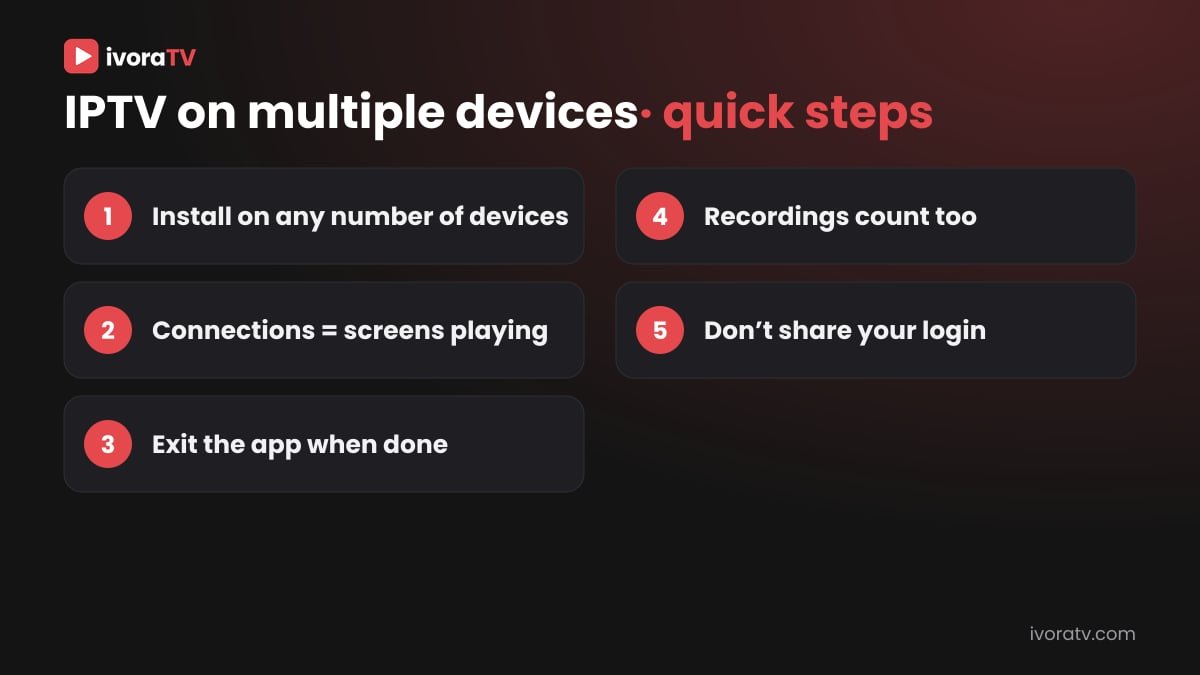
Like any IPTV service, your plan sets how many streams can play at the same moment.
- Install on as many devices as you like.
- Only your plan’s number of connections can play at once.
- Exit the app fully on devices you’re not using.
- Each recording or multi-view window counts as a stream.
- Never share your login outside your household.
Keep these rules in mind and IPTV on multiple devices works smoothly for the whole family. Want to protect the children’s devices too? See IPTV parental controls.
Why sharing your login with friends is a bad idea
Logins used in several homes at once quickly hit the connection limit, cause buffering for everyone and can get the line suspended. If friends or family want to watch, they can get their own trial and plan.
Frequently asked questions
Can I install IPTV on more than one device?
Yes. You can install the app and log in on as many devices as you like. The limit is how many play at the same time.
What does “max connections reached” mean?
More devices are streaming at the same time than your plan allows. Close the app on devices you are not using and try again after a minute.
Can I watch on my phone outside home?
Yes, with a mobile or Wi-Fi connection, as long as it counts within your plan’s connections. Streaming uses a lot of mobile data.
Don’t have ivoraTV yet?
Test it for 24 hours for $2 · 14-day refund policy on yearly packs