
A full IPTV channel list includes news, films and series that aren’t right for children. The good news: you can set up IPTV parental controls in a few minutes. This guide shows how to lock or hide categories in the main player apps and how to add a PIN on the device itself, so children can watch what is meant for them.
Two levels of protection
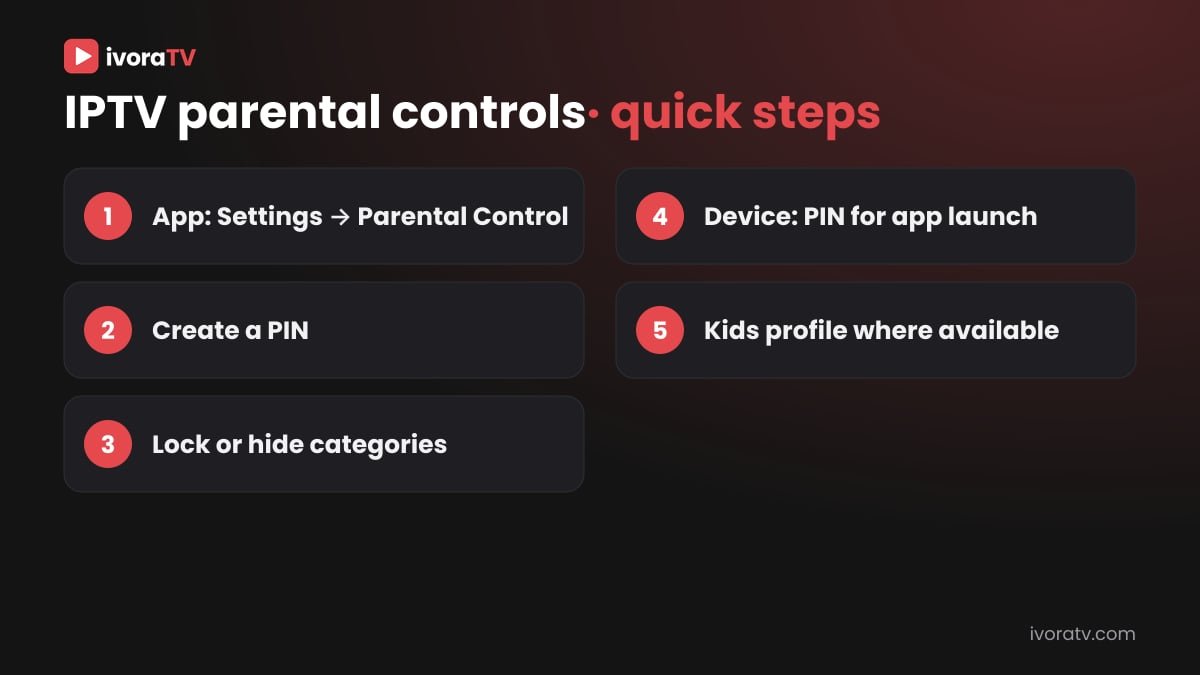
- In the player app: hide or lock specific channel groups, film and series categories.
- On the device: a PIN for purchases, app installs and opening certain apps.
Using both is the safest approach, because a child who can’t open a category in the app also can’t install another app to get around it.
IPTV parental controls in IPTV Smarters
- Open the app and go to Settings.
- Open Parental Control.
- Create a password (PIN).
- In the categories tab, lock the Live TV, film and series categories you want to protect.
Locked categories ask for the PIN before they open. Don’t have the app yet? See our IPTV Smarters setup guide.
IPTV parental controls in TiviMate
TiviMate has a parental control option in its settings where you set a PIN and choose which groups to lock. You can also simply hide groups you never want shown: long-press a group in the channel list and choose to hide it. Hidden groups don’t appear in the guide at all. More about the app in our TiviMate guide.
Fire TV (Firestick and Cube)
- Go to Settings → Preferences → Parental Controls.
- Turn them on and create a 5-digit PIN.
- Choose what needs the PIN: purchases, app launches, and content ratings in Amazon’s apps.
Requiring a PIN to open apps is the most useful option for IPTV: set it, and your IPTV app only opens after the PIN. A Kids profile is also available on newer Fire TV models.
Android TV and Google TV
Google TV supports Kids profiles (Google’s guide): you choose exactly which apps a child can use and set screen time limits. Create one from the profile icon in the top-right corner. On older Android TV devices, use the Restricted profile under Settings to limit apps.
Apple TV, iPhone and iPad
Use Settings → General → Restrictions on Apple TV, or Screen Time → Content & Privacy Restrictions on iPhone and iPad, to limit apps and require a passcode (see Apple’s parental controls guide). Combine it with the lock settings inside your IPTV app.
Samsung and LG Smart TVs
Both have a lock or PIN option in the settings (often under General / Safety or Lock settings) that can lock specific apps or channels. Inside apps like IBO Player Pro and SET IPTV, look for a parental or lock option for categories as well.
Practical tips
- Use a PIN children don’t know, and not 0000, 1234 or a birthday.
- Lock the settings menu of the app if it allows it, so locks can’t be removed.
- Check after updates: reinstalling an app or clearing its data removes its locks. See clear cache vs clear data.
- Set up a separate device for children’s rooms if you can, with only kids’ categories visible.
Why IPTV parental controls matter
An IPTV channel list is much bigger than a basic cable package, and on-demand libraries add thousands of films and series. Without IPTV parental controls, a child can reach any category in a few clicks. Setting them up once takes ten minutes and protects every device in the house.
IPTV parental controls checklist
- Set a PIN in your IPTV app and lock adult and late-night categories.
- Hide the groups children never need.
- Turn on the device PIN for app launches and purchases.
- Create a Kids profile on Google TV or Fire TV where available.
- Test it: try to open a locked category without the PIN.
- Write the PIN somewhere safe, away from the TV.
Forgot your PIN?
In most player apps, the only way to reset a forgotten PIN is to clear the app’s data and log in again, which also removes the locks, so set them up again afterwards. For Fire TV, Google TV and Apple devices, the PIN or passcode is reset through your Amazon, Google or Apple account.
IPTV parental controls for teenagers
Older children often need a different approach than young kids. Instead of locking everything, many families lock only adult and late-night categories and leave sport, films and series open. Talk about the rules, and use device-level screen time limits rather than hiding most of the channel list. IPTV parental controls work best as one part of family rules, not a replacement for them. Review the settings every few months, as children grow and as apps update.
Finding kids’ channels
Most channel lists have a Kids or Family group. Add the favourites a child watches to a Favourites list so they never need to browse the full list. Our channel list shows what is included. Questions about setting it up on your device? Message our support (9am–10pm ET, 7 days a week).
Frequently asked questions
Can I lock adult categories in IPTV Smarters?
Yes. In Settings → Parental Control, create a password, then lock the categories you choose. They will ask for the password before opening.
Will clearing the app's data remove parental controls?
Yes. Clear data or reinstalling resets the app, including its locks. Clear cache is safe and keeps your settings.
What is the best way to protect a Firestick for kids?
Turn on Fire TV parental controls with a PIN for app launches, and also lock or hide categories inside the IPTV app itself.
Don’t have ivoraTV yet?
Test it for 24 hours for $2 · 14-day refund policy on yearly packs