
If your Fire TV Stick feels slow, apps take ages to open or live channels freeze, the first thing to try is to clear cache on Firestick. It takes two minutes, deletes nothing important and often makes the stick feel new again. This guide shows how to do it, how to free up storage and how to keep the stick fast.
What is the cache, and why does it slow things down?
Every app keeps temporary files, the cache, so it can open screens and images faster. Over weeks these files grow, especially in streaming apps that load channel logos, posters and TV guide data. A Firestick has limited storage (8 GB on most models, 16 GB on some), so a large cache leaves less room for the system to work. The result is lag, apps that close on their own and more buffering.
How to clear cache on Firestick, step by step
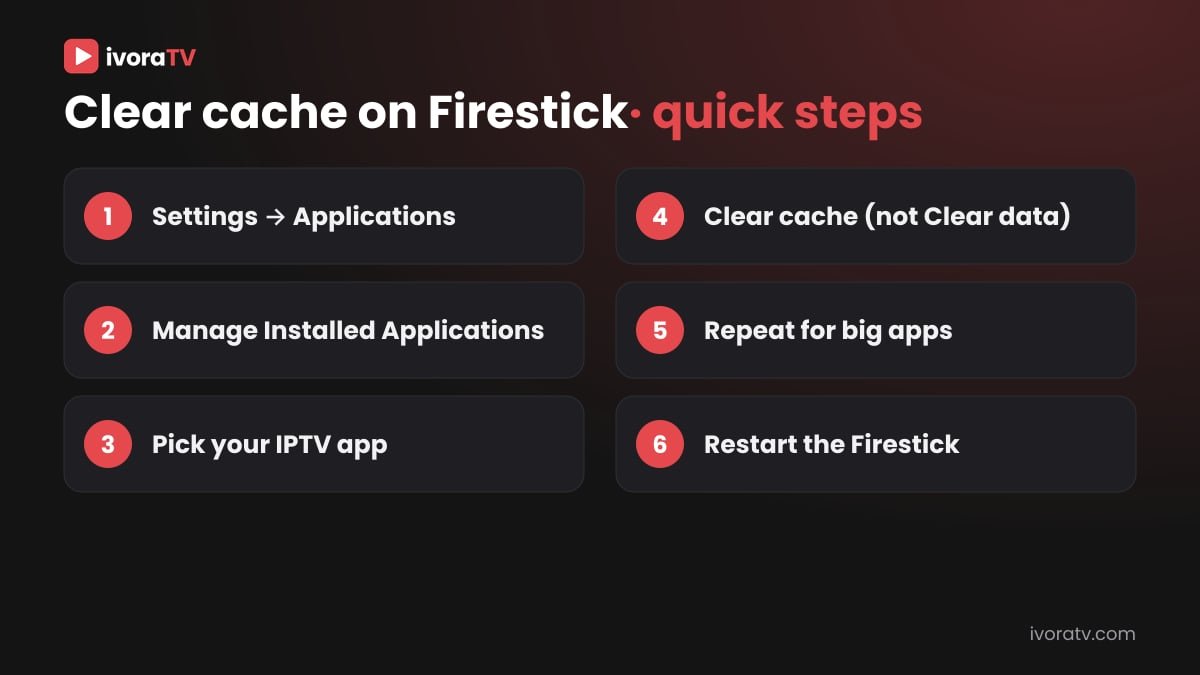
- From the home screen, open Settings (the gear icon on the right).
- Select Applications.
- Select Manage Installed Applications.
- Choose the app you want to clean, for example your IPTV player.
- Select Clear cache. The number next to “Cache” drops to zero or close to it.
- Repeat for your other big apps: streaming apps, the browser and YouTube.
Important: choose Clear cache, not Clear data. Clear data resets the app completely, so you would have to log in again and set up your playlist from the start. If you ever do that by mistake with IBO Player Pro, reopen the app: if your channels do not come back, send us the MAC address and device key again and we relink it. For other apps, our IPTV Smarters and TiviMate guides show how to log in again.
Check how much storage is left
Go to Settings → My Fire TV → About → Storage. Try to keep at least 1 to 2 GB free. Under about 500 MB, apps start to fail, updates won’t install and streams buffer more.
To free more space:
- Uninstall apps you don’t use. Manage Installed Applications → app → Uninstall.
- Delete downloaded APK files. If you installed an app with Downloader, open Downloader → Files and delete the .apk file. It is no longer needed after the install.
- Clear the cache of every big app, as above, once a month.
Restart the Firestick the right way
Turning off the TV does not restart the stick: it only goes to sleep. A real restart clears the memory and stops apps running in the background. Use Settings → My Fire TV → Restart, or hold Select + Play/Pause on the remote for about 5 seconds. Doing this once a week keeps most sticks fast.
Other quick settings that help
- Turn off automatic video and audio play on the home screen: Settings → Preferences → Featured Content. It saves memory and data.
- Turn off Data Monitoring if you don’t need it: Settings → Preferences → Data Monitoring.
- Keep Fire OS updated: Settings → My Fire TV → About → Check for Updates.
- Use a wired connection if you can. Our Firestick Ethernet adapter guide explains why it helps so much with live TV.
Still slow after you clear cache on Firestick?
If the menus are fast again but live channels still buffer, the problem is probably the connection, not the stick. Run a speed test on the Firestick itself in the evening and compare it with our internet speed guide: about 15 Mbps for HD and 25 Mbps for 4K. Then work through our 10 buffering fixes.
If your stick is an older model (first-generation or a basic Lite from several years ago) and it is slow even after all of this, it may simply be time for a newer device. See our best device for IPTV comparison.
Which apps to clear cache on Firestick first
You don’t need to clean every app. When you clear cache on Firestick, start with the apps that store the most temporary data:
- Your IPTV player (IBO Player Pro, TiviMate and similar): channel logos, posters and TV guide data grow quickly.
- Big streaming apps: they cache artwork and previews for thousands of titles.
- The Silk browser and YouTube: both keep a lot of temporary files.
- Downloader: also check its Files tab for old APK files.
Small apps you rarely open can be left alone. Amazon lists the storage and memory of each model in its official Fire TV device specifications, which is useful to know how much room your stick really has.
Clear cache on Firestick vs clear data: what’s the difference?
Both buttons sit next to each other, so it’s easy to press the wrong one. Here is the difference in one table:
| Clear cache | Clear data | |
|---|---|---|
| What it deletes | Temporary files only | Everything: settings, logins, playlists |
| Do you need to log in again? | No | Yes |
| When to use it | Monthly, or when the app is slow | Only when the app is broken and nothing else works |
In short: clear cache on Firestick as often as you like, and keep Clear data as a last resort.
Signs it’s time to clear cache on Firestick
- Apps take more than a few seconds to open.
- The home screen stutters when you scroll.
- Your IPTV app closes on its own or freezes when loading the TV guide.
- A message says storage is low, or an app update fails.
- Channels buffer more than usual, even though your speed test is fine.
If you notice two or more of these, clear cache on Firestick first, then restart the stick. It solves the problem in most cases.
Does it work the same on every Fire TV model?
Yes. The steps to clear cache on Firestick are the same on the Fire TV Stick Lite, Fire TV Stick, 4K, 4K Max and the Fire TV Cube, because they all run Fire OS. The menu names have stayed almost identical for years. The only difference is storage: models with more space slow down later, but they still benefit from a monthly clean. If a menu looks different on your stick, update Fire OS first, then look under Settings → Applications.
One more tip: after you clear cache on Firestick, the first launch of each app can take a few extra seconds while it rebuilds the images it needs. That is normal and only happens once.
A simple monthly routine
- Clear the cache of your IPTV app and other big apps.
- Check storage and delete what you don’t use.
- Check for Fire OS and app updates.
- Restart the stick.
Ten minutes a month keeps your Firestick quick. New to IPTV on Fire TV? Start with our Firestick setup guide.
Frequently asked questions
Does clearing the cache on Firestick delete my apps or logins?
No. Clear cache only removes temporary files. Your apps, playlists and logins stay. Clear data is the option that resets an app, so avoid it unless you want to start again.
How often should I clear the cache on my Firestick?
Once a month is enough for most people. Do it sooner if apps get slow, close on their own or the stick says storage is low.
Can I clear the cache of all apps at once on Firestick?
Fire OS has no single button for all apps. You clear each app from Settings → Applications → Manage Installed Applications. Start with your biggest streaming apps.
Don’t have ivoraTV yet?
Test it for 24 hours for $2 · 14-day refund policy on yearly packs