4K IPTV gives four times the detail of Full HD: sharper sport, clearer faces and much better big-screen viewing. But 4K only works when every link in the chain supports it. This guide is a simple checklist so you get real Ultra HD and not a blurry stream that buffers.
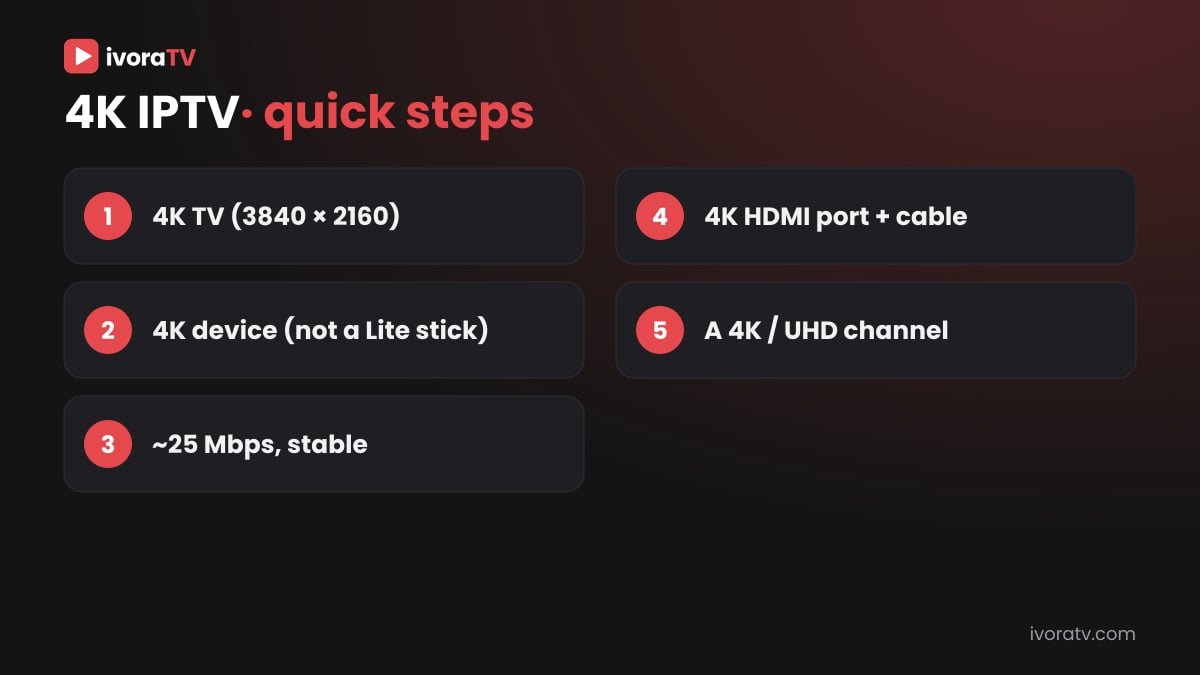
The 4K IPTV checklist
- A 4K TV (3840 × 2160). Most TVs sold in recent years are 4K.
- A 4K streaming device: Fire TV Stick 4K or 4K Max, Fire TV Cube, a 4K Android TV / Google TV device, Apple TV 4K, or the TV’s own apps. A Fire TV Stick Lite or the basic HD stick can’t output 4K.
- About 25 Mbps, stable, at the time you watch. See our internet speed guide.
- The right HDMI port and cable (see below).
- A 4K channel or film: only some streams are in 4K. They are usually labelled “4K” or “UHD”.
Choosing a device for 4K IPTV
The device matters more than people think. Many 4K IPTV streams use the HEVC (H.265) format, which older or cheaper devices can’t decode smoothly. A recent Fire TV Stick 4K Max, an Nvidia Shield, a Google TV device or Apple TV 4K handle it well. Our best device for IPTV comparison goes through the options.
HDMI port and cable
- Plug the device into an HDMI port that supports 4K at 60 Hz. On some TVs only certain ports do: look for labels like “4K@60Hz”, “HDCP 2.2” or “UHD”.
- On some Samsung and LG TVs you need to turn on enhanced HDMI for that port (names include “Input Signal Plus” on Samsung and “HDMI Ultra HD Deep Colour” on LG).
- Use a cable labelled “High Speed” or “Premium High Speed”. Very old cables can cause black screens or flickering in 4K.
Device settings
On a Firestick: Settings → Display & Sounds → Display → Video Resolution. “Auto” is best; if the stick is stuck at 1080p, check the HDMI port and cable above. On Android TV and Apple TV, look for the resolution setting under Display or Video and Audio.
App settings
- Video player: if a 4K channel shows a black screen or stutters, try another player in the app settings (for example switching between the built-in player and an ExoPlayer or VLC option).
- Hardware decoding: keep it on when the app offers the choice. Software decoding struggles with 4K.
- Buffer size: some apps let you raise it. A bigger buffer helps on connections that vary.
Why 4K IPTV can look worse than HD
If your internet can’t keep up, a 4K stream will buffer, freeze or drop quality more often than the HD version of the same channel. For live sport on a connection that is borderline, the Full HD channel is often the better experience. Watch in 4K when your connection is wired and stable. Our Ethernet adapter guide explains why a cable makes such a difference.
What about HDR?
HDR (High Dynamic Range) adds brighter highlights and richer colour. It depends on the stream, the device and the TV all supporting it. Most live IPTV channels are SDR; HDR is more common in some films. Turn on HDR in your device settings only if your TV supports it, otherwise colours can look washed out.
How much data does 4K IPTV use?
At about 25 Mbps, one hour of 4K IPTV uses roughly 10 GB of data, compared with about 2–3 GB for HD. If your internet plan has a monthly cap, watching a lot of 4K IPTV can reach it quickly. Watch big events in 4K and everyday TV in HD to stay within your limit.
Check your device’s 4K support
Not sure whether your stick supports 4K? Amazon lists the video output of each Fire TV model on its official Fire TV device specifications page. For other devices, check the box or the manufacturer’s website for “4K”, “2160p” and “HEVC”.
4K IPTV for live sport
Sport is where 4K IPTV looks best, and also where problems show first. For big games, use a cable, close other apps, and start the stream a few minutes early to let the player build its buffer. If the 4K channel stutters, switching to the Full HD version for the match is better than fighting buffering. More tips in IPTV for sports.
4K IPTV vs upscaled HD
Every 4K TV “upscales” HD pictures to fill the screen, and modern TVs do it well. That is why an HD channel can look surprisingly good on a 4K set. Real 4K IPTV is different: the detail is in the stream itself, which shows in grass on a football pitch, text on screen and faces in close-up. If you can’t see a difference, check that the channel is really labelled 4K or UHD and that your device outputs 2160p. On a smaller TV viewed from far away, the difference is smaller, so HD may be all you need.
How to test 4K IPTV at home
- Run a speed test on the device at 9 pm.
- Play a 4K channel for 10 minutes, then the HD version of a channel for comparison.
- If 4K buffers and HD doesn’t, the connection is the limit. Work through our buffering fixes.
Want to test 4K on your own TV? Our 24-hour trial includes 4K channels and films. Setting up the device first? Use our setup guides.
Frequently asked questions
What internet speed do I need for 4K IPTV?
About 25 Mbps per 4K stream, and it needs to be stable in the evening. A wired connection gives the best results.
Can a Fire TV Stick Lite play 4K IPTV?
No. The Lite and the basic HD Fire TV Stick output up to 1080p. You need a Fire TV Stick 4K, 4K Max or Fire TV Cube.
Why does my 4K channel show a black screen?
Usually the device can't decode the stream, the HDMI port or cable doesn't support 4K, or the app's player is the problem. Try another video player in the app settings and a 4K-ready HDMI port.
Don’t have ivoraTV yet?
Test it for 24 hours for $2 · 14-day refund policy on yearly packs