The EPG (Electronic Programme Guide) is the TV guide grid that shows what is on now and next. When the IPTV EPG is not working, channels still play, but you see “No information” or programmes at the wrong time. The good news: it is almost always a setting, not a fault with your subscription. If your IPTV EPG is not working, work through these fixes in order.
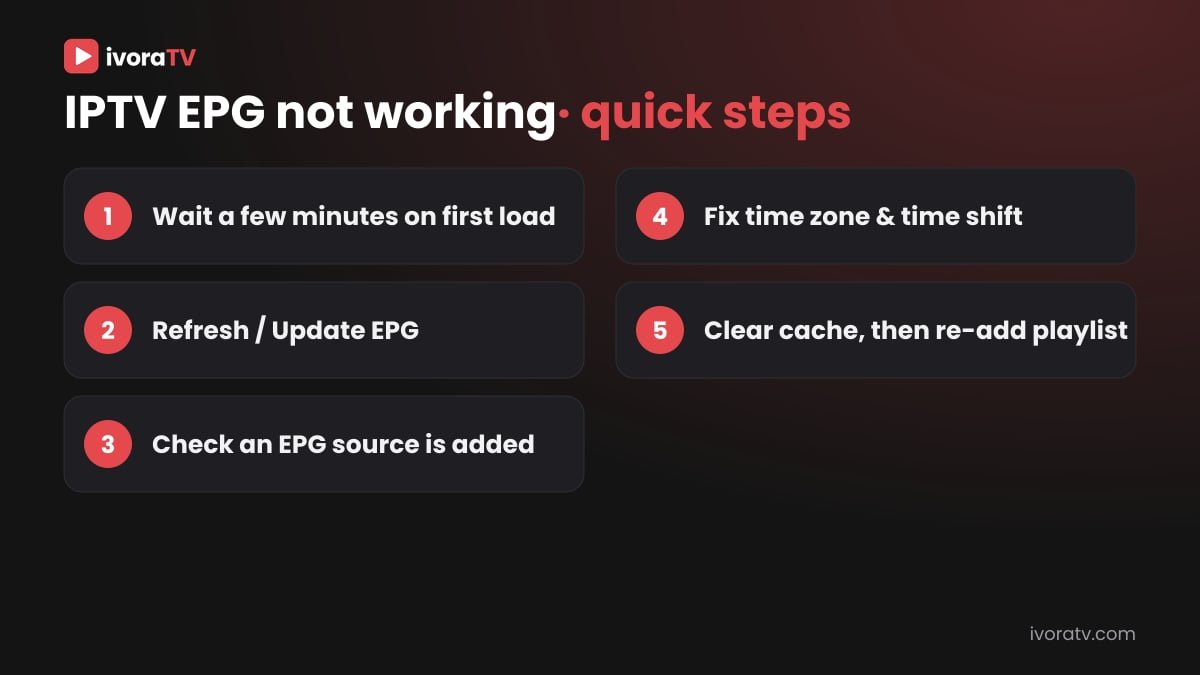
1. IPTV EPG not working on first load? Give it time
A TV guide for thousands of channels is a big file. After you add a playlist, many apps take one to five minutes to download and process it, and the guide stays empty until they finish. Leave the app open on the channel list for a few minutes before trying anything else.
2. IPTV EPG not working? Refresh it manually
- TiviMate: Settings → EPG → Update EPG.
- IPTV Smarters: open Live TV, then select Refresh EPG (or reload the user from the home screen).
- Other apps: look for “Update guide”, “Reload EPG” or “Refresh playlist” in the settings.
3. Check that an EPG source is added
With an Xtream Codes login, the guide comes with your account. With an M3U link, most apps need the separate EPG address (an XMLTV link). If you use M3U and the guide is empty, add the EPG link we sent you in the app’s EPG settings. Our article Xtream Codes vs M3U explains why.
4. Fix programmes showing at the wrong time
If the guide is there but one or several hours off, it is a time zone problem:
- Check the date, time and time zone of your device are correct and set to automatic.
- In the app, look for EPG time shift or time offset and adjust it (for example −1 or +1 hour).
- After daylight saving changes (March and October/November in the US, UK, Canada and Europe; April and October in Australia), re-check the offset.
5. Clear the app cache
An old, corrupted guide file can block updates. On Firestick and Android TV go to Settings → Applications → [your app] → Clear cache. Use Clear cache, not Clear data, so you keep your login.
6. Increase how many days of guide are stored
Some apps keep only one or two days by default, so the guide looks empty late in the evening. In TiviMate, check Settings → EPG → Update interval and how many days are kept. A shorter interval keeps the guide fresh.
7. IPTV EPG not working on only some channels?
It is normal for a few channels (local feeds, event channels, some international channels) to have no programme data. If a major channel you watch every day is missing its guide, send us its name: we can check how it is matched in the TV guide.
What the EPG actually is
The EPG is a list of programmes for every channel, usually for the next one to seven days, published in a standard format called XMLTV. Your player downloads that list and matches each programme to the right channel using a channel ID. Problems happen at three points: the list doesn’t download, it downloads but doesn’t match some channels, or it matches but your device shows it with the wrong time. The fixes above cover all three.
IPTV EPG not working? Where to find EPG settings in popular apps
- TiviMate: Settings → EPG for sources, update interval and time shift.
- IPTV Smarters: Settings → EPG timeshift, and Refresh EPG inside Live TV.
- XCIPTV: Settings → EPG for time shift and reload.
- Smart TV apps (IBO Player Pro, SET IPTV): EPG options are often on the app’s website where you uploaded your playlist.
- iPlayTV and GSE on Apple devices: look under the playlist’s settings for the EPG source and time offset.
If your app has no EPG settings at all, it may not support a TV guide. Switching to a player from our best IPTV player apps list usually solves it.
A 2-minute test when the IPTV EPG is not working
Open the same login on a second device or app. If the guide works there, the IPTV EPG is not working only in the first app, so its settings or cache are the cause. If the guide is empty everywhere, the source is the cause: refresh the playlist, wait 10 minutes and try again, then contact support. This simple test tells you where to look before you change any settings.
How to stop the IPTV EPG not working again
- Set the guide to update automatically every day.
- Check your device’s date, time and time zone after daylight saving changes.
- Keep the app updated.
- Use Xtream Codes, which loads the guide with your channels.
With these habits, “IPTV EPG not working” becomes a rare problem instead of a weekly one.
8. Remove and re-add the playlist
As a last step, delete the playlist in your app and add it again. This forces a completely fresh download of channels and guide. Have your login details ready before you start. Step-by-step help: TiviMate setup and IPTV Smarters setup.
Still nothing after these steps? Check our server status page to see if the TV guide service is under maintenance, then message us on WhatsApp.
Frequently asked questions
Why does my IPTV guide say “No information”?
The guide has not downloaded yet, no EPG source is set (common with M3U links), or that channel has no programme data. Refresh the EPG first.
Why is my TV guide one hour off?
Your device time zone or the app’s EPG time shift is wrong, often after a daylight saving change. Set the device time to automatic and adjust the EPG offset.
Does clearing the cache delete my login?
No, Clear cache keeps your login. Clear data removes it, so only use that if you have your details ready.
Don’t have ivoraTV yet?
Test it for 24 hours for $2 · 14-day refund policy on yearly packs