Running IPTV on Android TV gives you the widest choice of player apps and one of the smoothest experiences, whether you use a TV with Android TV built in, a Chromecast with Google TV, an Nvidia Shield or an Android box. This guide shows how to install a player and set up IPTV on Android TV with your ivoraTV login in a few minutes.
Best apps for IPTV on Android TV
| App | Price | Best for | Xtream | M3U |
|---|---|---|---|---|
| TiviMate | Free / Premium | Best TV guide | ✓ | ✓ |
| IPTV Smarters Pro | Free | Beginners | ✓ | ✓ |
| XCIPTV | Free | Simple & fast | ✓ | ✓ |
Which devices run Android TV?
- TVs with Android TV or Google TV built in: many Sony, Philips, TCL and Hisense models.
- Chromecast with Google TV: affordable, with a remote and full Google Play access.
- Nvidia Shield TV: the most powerful option, excellent for 4K and live sports.
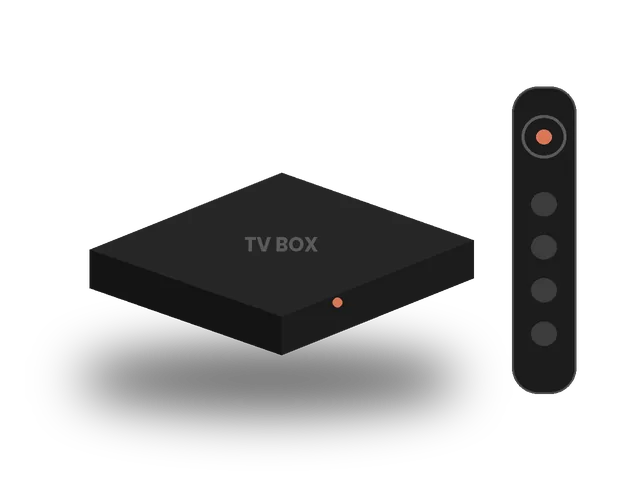
- Android TV boxes: choose a certified box with Google Play for the best app support and updates.
Google TV is the newer interface built on Android TV, so every step in this guide works on both.
Step 1 · Install the app
- Open Google PlayFrom the home screen, open Apps → Google Play Store (on Google TV: search from the Home screen).
- Search and installSearch for “TiviMate” or “IPTV Smarters” and install it.
- Open the appFind it in your apps list and open it.
Step 2 · Log in
- TiviMate: Add playlist → Xtream CodesServer address: your server URL · Username and password from your email.
- Name the playlistType ivoraTV and confirm. TiviMate loads channels and the TV guide.
- Enter your detailsAny name: ivoraTV · Username and password: from your ivoraTV email · URL: the server address from your email (starts with http://).
- TiviMate: Add playlist → M3U playlistPaste your full M3U link, then press Next.
- Name the playlistType ivoraTV and confirm. Wait for channels to load.
Tips for smooth IPTV on Android TV
- Use a wired Ethernet connection or 5 GHz Wi-Fi when possible.
- Restart your device and router once a week to clear memory.
- Keep the player app updated to the latest version.
- If a channel buffers, try another stream of the same channel (many channels have HD and FHD versions).
Troubleshooting IPTV on Android TV
- “Invalid username or password”: copy the details again from your email, with no spaces at the start or end. Usernames and passwords are case-sensitive.
- Channels load but don’t play: check the server URL (including http:// and the port number), then restart the app.
- Buffering: follow our 10 buffering fixes and check the server status page.
- Still stuck? Message us on WhatsApp. Most setups are fixed in a few minutes.
Before you set up IPTV on Android TV
A few minutes of preparation makes the setup of IPTV on Android TV smooth. Keep your welcome email open on your phone so you can copy the login details without typos, check that your Android TV device has the latest software update, and make sure it is connected to your home network, ideally with a cable or strong 5 GHz Wi-Fi. If you share the account in your home, decide which screens will watch at the same time so your plan matches. Finally, write down the name of the player app you choose: if you ever need help, telling our team the device and the app lets us answer in a single message.
Use Ethernet for the most stable IPTV on Android TV
Wi-Fi is the most common cause of buffering on streaming devices. Many Android TV boxes and the Nvidia Shield have an Ethernet port, and Chromecast with Google TV supports a USB-C Ethernet adapter. A wired connection gives the most stable IPTV on Android TV during busy evenings and live sports, when Wi-Fi in apartment buildings is crowded.
Settings that keep your device fast
- Uninstall apps you never open and clear the player cache every few weeks.
- Keep at least 1–2 GB of free storage for the TV guide.
- Set the display resolution to match your TV (4K TV: 4K; Full HD TV: 1080p).
- Restart the device once a week from Settings → System → Restart.
Xtream Codes or M3U?
For IPTV on Android TV, Xtream Codes is the easiest login: it brings live TV, movies, series and the TV guide in one step and updates by itself. The M3U link is useful for players that only accept playlists. Your ivoraTV email includes both, so you can try two players and keep the one you prefer.
TiviMate tips for IPTV on Android TV
TiviMate is the most popular player for IPTV on Android TV because of its fast grid TV guide. A few settings make it even better: turn on automatic EPG update every 12 hours, hide the channel groups you never watch, and create a Favorites group for quick access. On low-memory boxes, reduce the number of days of EPG to keep the app fast.
Also watching on a phone? See how to set up IPTV on Android phones, or browse all IPTV setup guides.
Frequently asked questions
What is the best IPTV app for Android TV?
TiviMate is the favorite for its TV guide and speed. IPTV Smarters Pro is the easiest for beginners.
Does it work on Chromecast with Google TV?
Yes. Install the app from Google Play on the Chromecast with Google TV and log in the same way.
Can I record shows?
Some apps like TiviMate Premium support recording to a USB drive, depending on your device.
Don’t have ivoraTV yet?
Get your login details in minutes · 14-day refund policy