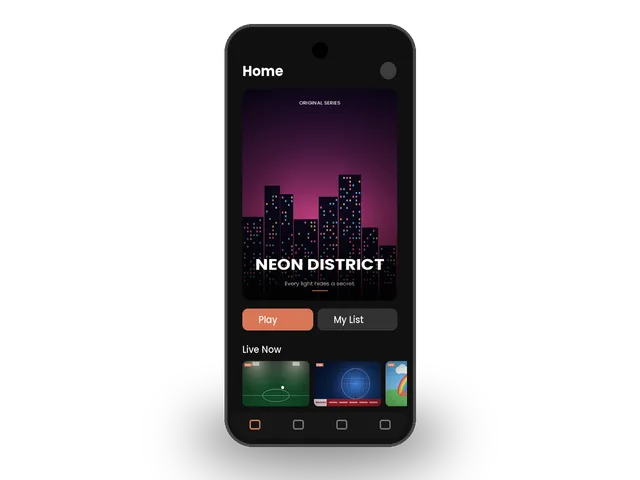
Setting up IPTV on Android phone and tablet is quick: install IBO Player Pro from Google Play and log in with the username, password and server URL we send you. It's the same app we use on TVs, so your favourites feel familiar everywhere.
Why IBO Player Pro for IPTV on Android phone
Standardising on one app across phones, tablets and TVs keeps setup simple and support fast. IBO Player Pro installs from Google Play, so it updates automatically and doesn't need any special settings. On each phone or tablet you log in with the same username, password and server URL; how many screens can watch at the same time depends on your plan. Remember that your plan sets how many screens can watch at the same time, so a phone watching in the kitchen and a TV in the living room count as two connections.
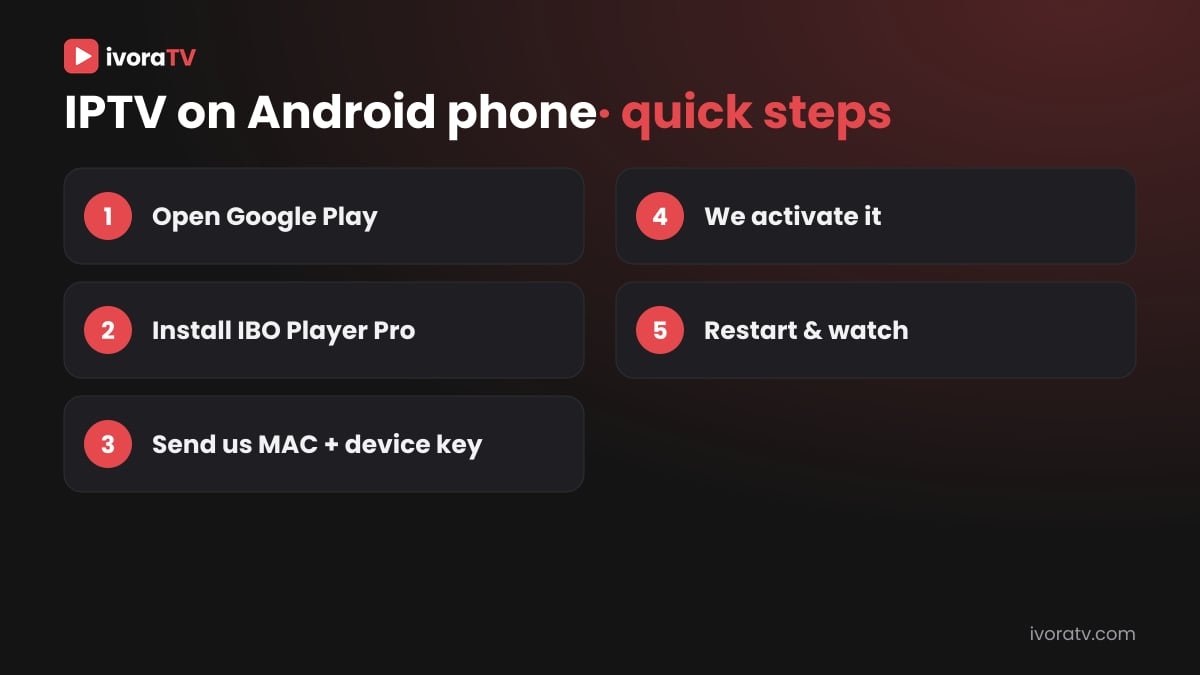
Step 1: Install IBO Player Pro on your Android phone
- Open the Google Play Store (or the app's Google Play page).
- Search IBO Player Pro.
- Tap Install, then Open, and allow the permissions it asks for.
Step 2: Log in with your username, password and server URL
An Android phone or tablet has no MAC address like a TV, so there is nothing to send us here. Right after your payment we send you three login details on WhatsApp and by email: your Username, your Password and the Server URL. You type them once in the app and you're done.
- Open IBO Player Pro and choose the login with a username: it is usually called Xtream Codes, Login with username or Add user.
- Enter the Username and Password exactly as we sent them (they are case-sensitive).
- Enter the Server URL in full, including http:// and the port number at the end (for example :8080), if there is one.
- Tap Login or Add user. Your channels, movies and series load in a few seconds.
Tip: copy and paste the three details from our WhatsApp message instead of typing them, so no space or letter slips in.
Step 3: Start watching IPTV on Android phone
- Rotate the phone for full screen.
- Cast to the TV with Chromecast if your TV supports it, or install the app on the TV: see our Android TV guide.
- Favourites keep your top channels one tap away.
Tips for IPTV on Android phone
- Battery saver off for the app, so streams don't stop in the background.
- Use Wi-Fi for long viewing to save mobile data.
- Clear the app cache if it gets slow: Settings → Apps → IBO Player Pro → Storage.
IPTV on Android phone: quick fixes
- App won't open: update it from Google Play and restart the phone.
- Channels missing: restart the app, then check your username, password and server URL for typos.
- Stops when the screen locks: turn off battery optimisation for the app.
Next steps
- Picture freezing? Work through our 10 IPTV buffering fixes.
- More screens: read how IPTV on multiple devices works before you add another TV or phone.
- Watching on mobile data? Check the speed and data you need.
- Not a customer yet? Test ivoraTV for 24 hours for $2 on this device before you choose a yearly pack.
Frequently asked questions
Which app should I install on my Android phone?
IBO Player Pro from the Google Play Store. Then log in with the username, password and server URL we send you.
Do I need a MAC address on my phone?
No. MAC addresses are for TVs and streaming sticks. On an Android phone or tablet you log in with the username, password and server URL we send you on WhatsApp and by email.
Does it work on tablets?
Yes. Any Android tablet with Google Play can install IBO Player Pro.
Can I cast from my phone to the TV?
If your TV supports Chromecast you can cast. For the best experience, install IBO Player Pro on the TV too.
Don’t have ivoraTV yet?
Test it for 24 hours for $2 · 14-day refund policy on yearly packs