Watching IPTV on Firestick is one of the easiest ways to get thousands of live channels on any TV with an HDMI port. In this guide you will install a player app, log in with your ivoraTV details and have IPTV on Firestick running in about five minutes, even if you have never installed an app outside the Amazon Appstore.
Best apps for IPTV on Firestick
| App | Price | Best for | Xtream | M3U |
|---|---|---|---|---|
| IPTV Smarters Pro | Free | Beginners | ✓ | ✓ |
| TiviMate | Free / Premium | Best TV guide | ✓ | ✓ |
| XCIPTV | Free | Fast & simple | ✓ | ✓ |
Why choose IPTV on Firestick?
The Amazon Fire TV family is small, affordable and plugs straight into the TV, so it is a favourite for IPTV on Firestick setups in living rooms and bedrooms alike. The remote is simple for the whole family, the 4K models handle Full HD and 4K streams easily, and the most popular IPTV players (IPTV Smarters, TiviMate and XCIPTV) all run on it. If your Smart TV store does not offer a good IPTV app, a Firestick is usually the quickest fix.
Which Firestick is best for IPTV?
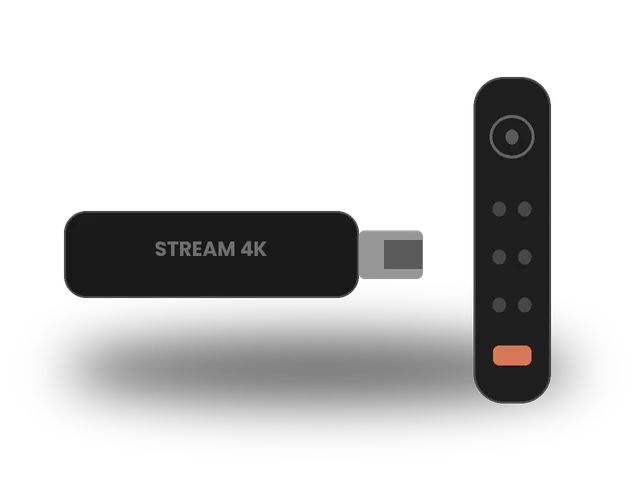
- Fire TV Stick 4K Max: the fastest model, with Wi-Fi 6E. Best for live sports and 4K.
- Fire TV Stick 4K: great value and smooth in Full HD and 4K.
- Fire TV Stick / Lite: fine for HD, but with less memory, so keep only the apps you use.
- Fire TV Cube: very fast and has an Ethernet port built in.
Step 1 · Prepare your Firestick
- Turn on Developer OptionsGo to Settings → My Fire TV → About and click your device name 7 times until you see “You are now a developer”.
- Allow app installsGo back to My Fire TV → Developer Options → Install unknown apps and turn it ON for Downloader (install Downloader first if it isn’t listed).
- Install DownloaderOn the home screen, search for “Downloader” (orange icon), then download and open it.
Step 2 · Install the player app
- Enter the download linkIn Downloader, type the app download link or code we send you with your ivoraTV details, then press Go.
- Install the appClick Install, then Done. Delete the downloaded file when asked to free up space.
- Open the appYou’ll find it under Your Apps & Channels. Hold the Home button → Apps to move it to the front row.
Step 3 · Log in
- Choose “Login with Xtream Codes API”It is usually the first option on the welcome screen.
- Enter your detailsAny name: ivoraTV · Username and password: from your ivoraTV email · URL: the server address from your email (starts with http://).
- Tap “Add user”The app downloads channels, movies and the TV guide. The first load can take a minute.
- Choose “Load your playlist or file/URL”Select the M3U URL option.
- Paste your M3U linkPlaylist name: ivoraTV · File/URL: paste the full M3U link from your email.
- Tap “Add user”Wait for the playlist to load, then open Live TV.
Tips for smooth IPTV on Firestick
- Use a wired Ethernet connection or 5 GHz Wi-Fi when possible.
- Restart your device and router once a week to clear memory.
- Keep the player app updated to the latest version.
- If a channel buffers, try another stream of the same channel (many channels have HD and FHD versions).
Troubleshooting IPTV on Firestick
- “Invalid username or password”: copy the details again from your email, with no spaces at the start or end. Usernames and passwords are case-sensitive.
- Channels load but don’t play: check the server URL (including http:// and the port number), then restart the app.
- Buffering: follow our 10 buffering fixes and check the server status page.
- Firestick feels slow: uninstall apps you don’t use and clear the cache of your player app.
- Still stuck? Message us on WhatsApp. Most setups are fixed in a few minutes.
Xtream Codes or M3U for IPTV on Firestick?
Your welcome email contains both. Use Xtream Codes whenever the app offers it: it loads live TV, movies, series and the TV guide from a single login, and it updates automatically when channels change. Keep the M3U link as a backup for players that only accept playlists. Both give you exactly the same content, so the choice only affects convenience.
Firestick settings that improve IPTV
- Display resolution: leave it on Auto so the stick matches your TV.
- Data monitoring: turn it off under Settings → Preferences to avoid stream limits.
- Unused apps: uninstall them; free storage keeps IPTV on Firestick fast.
- Restart weekly: hold Select and Play/Pause for five seconds to restart the stick.
How many Firesticks can use one account?
You can install the player on as many Firesticks as you like, for example in the living room and the bedroom. The number of devices that can stream at the same moment depends on your plan, so if two people watch IPTV on Firestick at the same time, make sure your subscription allows two connections. Our support team can confirm this in seconds.
After setup: get the most from IPTV on Firestick
Once the app is installed, add your favourite channels to Favorites so they open in one click, and set the TV guide (EPG) to update automatically. If several people in your home watch IPTV on Firestick at the same time, check that your plan allows enough screens. Need help? Our team can connect remotely through WhatsApp messages and guide you step by step.
Using another device as well? See all our IPTV setup guides, or read which IPTV player is best for your device.
Frequently asked questions
Is it hard to set up IPTV on a Firestick?
No. Most people finish in about 5 minutes: enable unknown apps, install the player with Downloader, then log in with your details.
Which Firestick model is best for IPTV?
Any current model works. The Fire TV Stick 4K or 4K Max gives the smoothest experience and supports 4K streams.
Can I use the same account on another device?
Yes, you can install it on several devices. The number of screens that can watch at the same time depends on your plan.
Don’t have ivoraTV yet?
Get your login details in minutes · 14-day refund policy