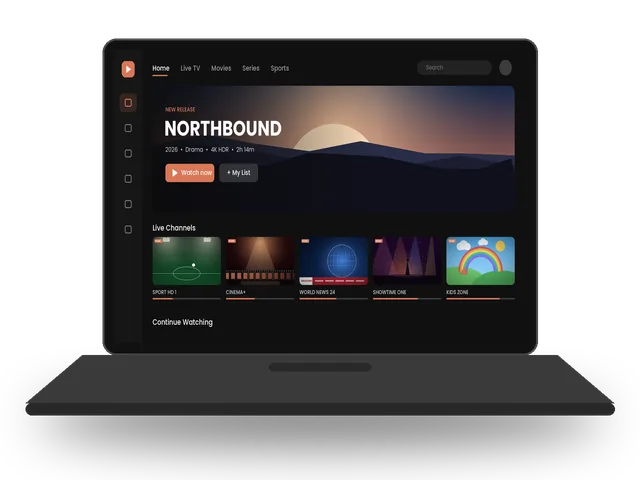
Watching IPTV on PC is perfect for your desk, a laptop on the sofa or a computer connected to the TV with HDMI. You only need a free player app, and the same steps work on Windows 10, Windows 11 and macOS. This guide shows the best players and how to log in to get IPTV on PC running with your ivoraTV details.
Best apps for IPTV on PC & Mac
| App | Price | Best for | Xtream | M3U |
|---|---|---|---|---|
| IPTV Smarters Pro | Free | Full TV experience | ✓ | ✓ |
| VLC Media Player | Free | Quick & simple | — | ✓ |
| MyIPTV Player (Windows) | Free | Windows Store app | — | ✓ |
Which player should you use?
For the full experience with live TV, a TV guide, movies and series, choose IPTV Smarters. If you only want to check that your M3U link works, VLC media player opens it in seconds and is free on every system. Watching IPTV on PC through a modern player also lets you use keyboard shortcuts and full-screen mode on a second monitor.
Step 1 · Install the app
- Download the playerDownload IPTV Smarters Pro from its official website, or VLC from videolan.org, or MyIPTV Player from the Microsoft Store.
- InstallOpen the downloaded file and follow the installer. On Mac, drag the app to the Applications folder.
- Open the appOn Mac, if you see a security warning, right-click the app and choose Open.
Step 2 · Log in
- Choose “Login with Xtream Codes API”It is usually the first option on the welcome screen.
- Enter your detailsAny name: ivoraTV · Username and password: from your ivoraTV email · URL: the server address from your email (starts with http://).
- Tap “Add user”The app downloads channels, movies and the TV guide. The first load can take a minute.
- IPTV Smarters: Load playlist / M3U URLName: ivoraTV · paste your M3U link · Add user.
- VLC: Media → Open Network StreamOn Mac: File → Open Network. Paste your M3U link and press Play. Open the playlist view (Ctrl+L / Cmd+L) to choose channels.
Tips for smooth IPTV on PC
- Use a wired Ethernet connection or 5 GHz Wi-Fi when possible.
- Restart your device and router once a week to clear memory.
- Keep the player app updated to the latest version.
- If a channel buffers, try another stream of the same channel (many channels have HD and FHD versions).
Troubleshooting IPTV on PC
- “Invalid username or password”: copy the details again from your email, with no spaces at the start or end. Usernames and passwords are case-sensitive.
- Channels load but don’t play: check the server URL (including http:// and the port number), then restart the app.
- Buffering: follow our 10 buffering fixes and check the server status page.
- Still stuck? Message us on WhatsApp. Most setups are fixed in a few minutes.
Before you set up IPTV on PC
A few minutes of preparation makes the setup of IPTV on PC smooth. Keep your welcome email open on your phone so you can copy the login details without typos, check that your computer has the latest software update, and make sure it is connected to your home network, ideally with a cable or strong 5 GHz Wi-Fi. If you share the account in your home, decide which screens will watch at the same time so your plan matches. Finally, write down the name of the player app you choose: if you ever need help, telling our team the device and the app lets us answer in a single message.
Tips for Windows
- Install the player from its official website or the Microsoft Store, never from unknown download sites.
- Allow the app through Windows Defender Firewall when asked, otherwise channels may not load.
- Plug your PC into the router with Ethernet for the most stable IPTV on PC.
Tips for Mac
- If macOS says the app “cannot be opened”, right-click it in Applications and choose Open.
- Use full screen with the green button, and Picture-in-Picture if your player supports it.
- AirPlay the window to an Apple TV for a quick big-screen session.
Can you watch IPTV in a web browser?
Some services offer a web player, but a dedicated app gives a better picture, a full TV guide and fewer interruptions. For everyday IPTV on PC and Mac, install IPTV Smarters, and keep VLC as a free backup for quick tests of your M3U link.
Connect your PC to the TV
Any laptop with an HDMI port can turn a TV into a big screen for IPTV on PC. Plug in the cable, choose the HDMI input on the TV, then set the player to full screen. For daily viewing in the living room, a dedicated device is more comfortable: see our Firestick guide or the Smart TV guide.
Browse all IPTV setup guides.
Frequently asked questions
Can I watch IPTV in a web browser?
Most IPTV players are apps. For the best quality and TV guide, use IPTV Smarters on your computer.
Does VLC support Xtream Codes?
No, VLC only plays M3U links. Use IPTV Smarters if you want to log in with Xtream Codes.
Can I connect my laptop to the TV?
Yes, with an HDMI cable. Set the player to full screen.
Don’t have ivoraTV yet?
Get your login details in minutes · 14-day refund policy