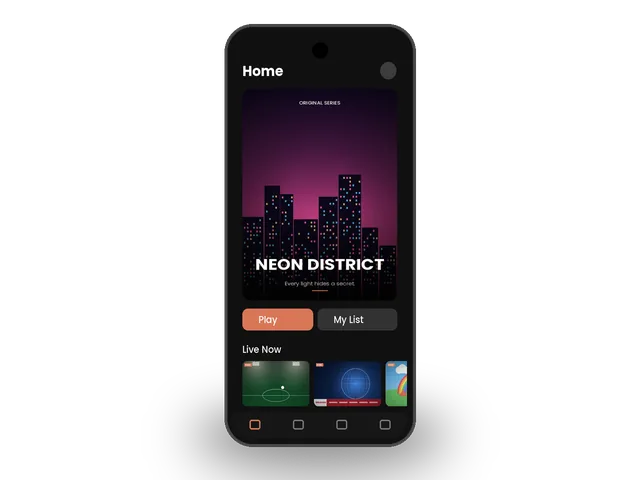
Setting up IPTV on Android phone and tablet takes only a few minutes and gives you live TV, movies and series in your pocket. The best players are free on Google Play, and they work on Samsung, Google Pixel, Xiaomi, Motorola and every other Android brand. Here is how to get IPTV on Android phone devices working with your ivoraTV login.
Best apps for IPTV on Android phone & tablet
| App | Price | Best for | Xtream | M3U |
|---|---|---|---|---|
| IPTV Smarters Pro | Free | Beginners | ✓ | ✓ |
| Televizo | Free / Premium | Clean interface | ✓ | ✓ |
| XCIPTV | Free | Fast & light | ✓ | ✓ |
What you need
Any phone or tablet with Android 8 or newer is enough. For the best experience, connect to Wi-Fi, keep at least 1 GB of free storage for the TV guide, and update the app regularly. On mobile data, HD streaming uses around 1.5 to 3 GB per hour, so check your data plan before watching IPTV on Android phone for hours away from home.
Step 1 · Install the app
- Open Google PlaySearch for “IPTV Smarters Pro” or “Televizo”.
- InstallTap Install and wait for the download.
- Open the appAllow the permissions it asks for (storage is used for the TV guide).
Step 2 · Log in
- Choose “Login with Xtream Codes API”It is usually the first option on the welcome screen.
- Enter your detailsAny name: ivoraTV · Username and password: from your ivoraTV email · URL: the server address from your email (starts with http://).
- Tap “Add user”The app downloads channels, movies and the TV guide. The first load can take a minute.
- Choose “Load your playlist or file/URL”Select the M3U URL option.
- Paste your M3U linkPlaylist name: ivoraTV · File/URL: paste the full M3U link from your email.
- Tap “Add user”Wait for the playlist to load, then open Live TV.
Using an Android tablet?
Every app above works on Android tablets. Turn on auto-rotate for a full-screen landscape view and a bigger TV guide.
Tips for smooth IPTV on Android phone
- Use a wired Ethernet connection or 5 GHz Wi-Fi when possible.
- Restart your device and router once a week to clear memory.
- Keep the player app updated to the latest version.
- If a channel buffers, try another stream of the same channel (many channels have HD and FHD versions).
Troubleshooting IPTV on Android phone
- “Invalid username or password”: copy the details again from your email, with no spaces at the start or end. Usernames and passwords are case-sensitive.
- Channels load but don’t play: check the server URL (including http:// and the port number), then restart the app.
- Buffering: follow our 10 buffering fixes and check the server status page.
- Still stuck? Message us on WhatsApp. Most setups are fixed in a few minutes.
Before you set up IPTV on Android phone
A few minutes of preparation makes the setup of IPTV on Android phone smooth. Keep your welcome email open on your phone so you can copy the login details without typos, check that your phone or tablet has the latest software update, and make sure it is connected to your home network, ideally with a cable or strong 5 GHz Wi-Fi. If you share the account in your home, decide which screens will watch at the same time so your plan matches. Finally, write down the name of the player app you choose: if you ever need help, telling our team the device and the app lets us answer in a single message.
Save mobile data
Watching IPTV on Android phone over 4G or 5G works well, but video uses a lot of data: about 1.5–3 GB per hour in HD. To save data, choose the SD or HD version of a channel, turn on Data Saver in your Android settings, and download nothing in the background while you watch.
Picture-in-Picture on Android
Many players support Picture-in-Picture: press the Home button while a channel plays and the video shrinks into a small window. You can keep watching the game while you check messages or maps. If it does not work, enable it under Settings → Apps → Special app access → Picture-in-picture.
Tips for Android tablets
The larger screen of a tablet makes the TV guide much easier to browse. Turn on auto-rotate, use landscape mode, and set the player to remember your last channel. With a good tablet, IPTV on Android phone and tablet becomes a second TV for the kitchen or the bedroom.
Cast IPTV from your Android phone to the TV
With Chromecast or Samsung Smart View you can send the picture from IPTV on Android phone to your TV. It is handy for a quick match or film, but for everyday viewing a player installed on the TV is smoother. See our Android TV guide or our Firestick guide.
Browse all IPTV setup guides for your other screens.
Frequently asked questions
What is the best IPTV app for Android phones?
IPTV Smarters Pro is the easiest. Televizo has a cleaner design and a great TV guide.
Can I download channels to watch offline?
No. Live TV needs an internet connection.
Will it drain my battery?
Video streaming uses battery like any video app. Lower the brightness and use Wi-Fi to save power.
Don’t have ivoraTV yet?
Get your login details in minutes · 14-day refund policy