You switch on the TV and the match or the show has already started. With IPTV catch-up, that is not a problem: on supported channels you can go back and watch programmes that aired earlier, straight from the TV guide. This guide explains how catch-up works, which apps support it and how to use it.
What is IPTV catch-up?
IPTV catch-up (also called “archive” or “timeshift”) means the provider keeps a recording of what a channel broadcast over the last hours or days. In the TV guide, past programmes on these channels can be played like a video, with pause, rewind and fast-forward. It is different from recording: you don’t need to plan anything or have storage on your device.
Why only some channels have IPTV catch-up
Keeping an archive of every channel takes a lot of server storage, so providers usually offer it on a selection of popular channels, with a set number of days. In most apps, channels with catch-up show a small clock or archive icon. If you’re not sure which channels have it on your service, look for that icon or ask support. On ivoraTV, our support team can tell you which channels currently include it.
Which apps support IPTV catch-up?
- TiviMate: shows the archive icon in the guide. Playing past programmes is part of TiviMate Premium.
- IPTV Smarters: has a Catch up section on the home screen, plus catch-up from the TV guide.
- Other players: many support it with Xtream Codes logins. Check the app’s settings or help page.
Catch-up generally works best with an Xtream Codes login, because the app gets the archive information automatically. With an M3U link it may need extra settings or may not work. See Xtream Codes vs M3U.
How to use catch-up in TiviMate
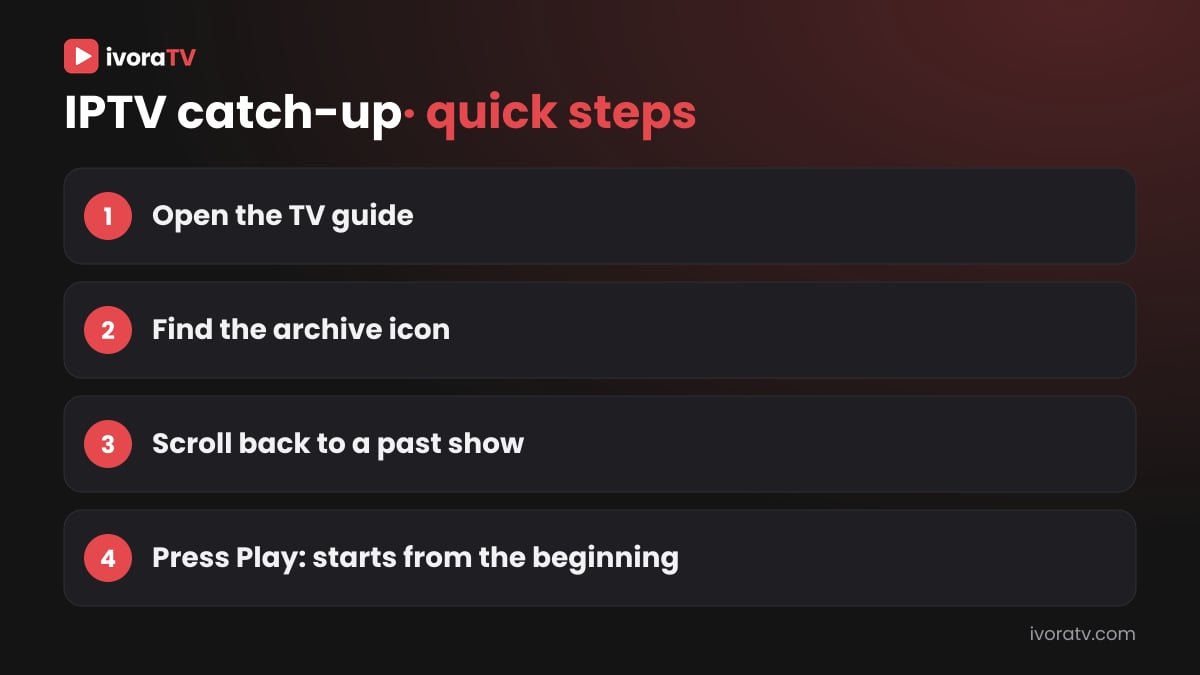
- Open the TV guide.
- Choose a channel with the archive icon.
- Scroll left to a programme that has already aired.
- Select it and choose Play. It plays from the start.
While watching live, you can also press left on the remote to jump back within the programme if the channel supports it. Setting up TiviMate for the first time? Follow our TiviMate guide.
How to use catch-up in IPTV Smarters
- On the home screen, open Catch up.
- Pick a category, then a channel.
- Choose a day and a programme from the list.
More on the app in our IPTV Smarters guide.
IPTV catch-up not working? Check these
- No programmes listed. IPTV catch-up depends on the electronic programme guide. If the EPG is empty, there is nothing to choose. Fix it with our EPG guide.
- Wrong programme plays. The guide time is shifted. Check your device time zone and the app’s EPG time shift setting.
- Icon missing everywhere. You may be logged in with M3U. Try Xtream Codes.
- Plays then stops. Treat it like buffering: see our buffering fixes.
Catch-up vs recording
Catch-up is ready-made and needs no storage, but only covers selected channels for a limited number of days. Recording lets you keep a programme as long as you like, on any channel you can watch, but needs storage and an app that supports it. Our guide on how to record IPTV explains the options.
How far back does IPTV catch-up go?
It depends on the provider and the channel. Some keep a day, others several days. In the TV guide, past programmes on a channel with IPTV catch-up stay playable until the archive limit; older ones simply stop showing the play option. If you want to keep something longer, record it instead.
Tips to get the most from IPTV catch-up
- Use Xtream Codes on the device where you watch most.
- Keep the TV guide up to date: in TiviMate, set the EPG to update automatically every day.
- Add catch-up channels to Favourites so you can find them quickly.
- Watch on a wired connection for smooth playback, just like live TV.
- Check the time zone on your device: a wrong time zone makes IPTV catch-up start the wrong programme.
Does IPTV catch-up use more data?
No more than live TV. A past programme streams at the same quality as the live channel, so about 1.5–3 GB per hour in HD. The difference is that nothing is stored on your device.
IPTV catch-up vs pausing live TV
These two features are easy to confuse. Pausing live TV (timeshift) only works on what you are watching now: the app keeps a short buffer so you can pause or rewind a few minutes. IPTV catch-up goes further: it lets you start any past programme in the archive, even one that aired yesterday, from the beginning. Some apps call both “timeshift”, so look at what the button actually does. If you can pick a programme in the past from the TV guide and play it from the start, that’s IPTV catch-up.
For the best results with either feature, keep your app updated and your connection stable.
A note for sports fans
Catch-up is perfect for watching a game that started while you were driving home: start from kick-off and skip the half-time break. For the best live experience, see our IPTV for sports tips.
Frequently asked questions
Does every IPTV channel have catch-up?
No. Providers usually offer catch-up on a selection of channels, for a set number of days. Look for the clock or archive icon in your app's TV guide.
Do I need TiviMate Premium for catch-up?
Playing archived programmes in TiviMate is a Premium feature. IPTV Smarters has a Catch up section in its standard app.
Why doesn't catch-up work with my M3U link?
Catch-up information comes most reliably through an Xtream Codes login. With M3U, many apps don't get the archive details. Log in with Xtream Codes instead.
Don’t have ivoraTV yet?
Test it for 24 hours for $2 · 14-day refund policy on yearly packs